Article Content
| Overview |
| User Account Requirements |
| Navigation |
| Reviewing an Open Issue |
Overview
As part of the issue review process, a member of the Issue Team must confirm and set the Manage Issue section details, which include Priority, Issue Impact, Recommendation, and Support Attachments, and set Key Dates for the issue. These Key Dates drive the issue, making sure that it stays on track. If a Due Date or Extended Due Date is missed, the system will automatically send the Issue Owner an email notification reminding the user about the outstanding issue. A member of the Issue Team must also confirm and set Issue Details and Key Roles for the issue.
User Account Requirements
The user account used must be added to the Issue Team user group to review an issue.
Navigation
- From the Home screen, click the Home dropdown.
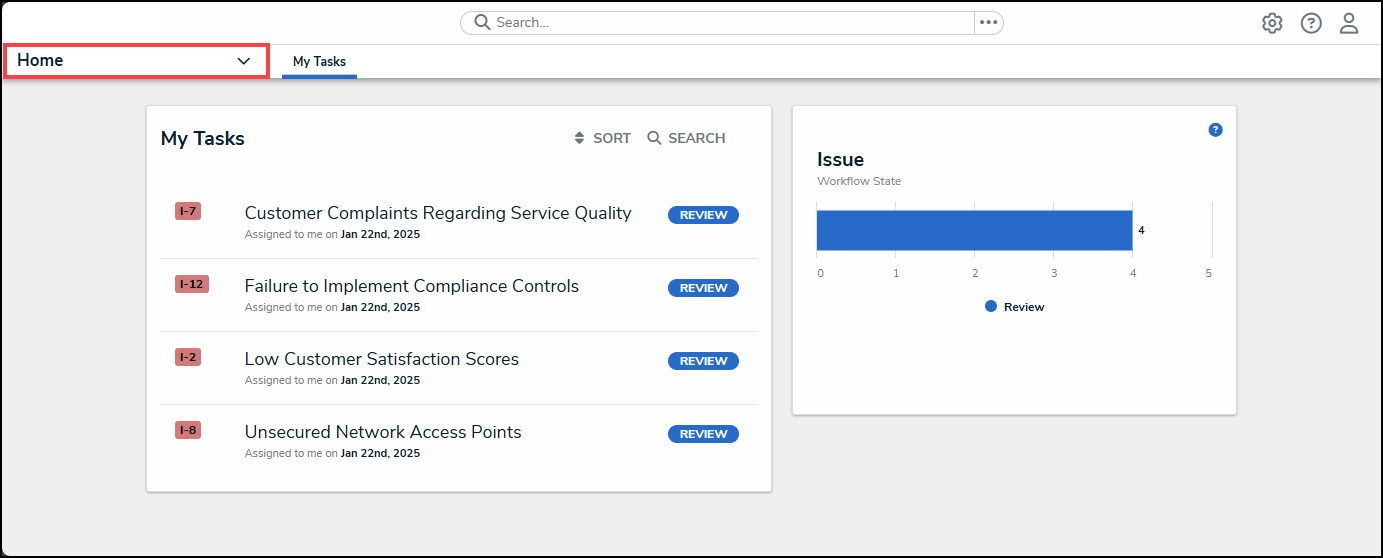
Home Dropdown
- From the Home dropdown menu, select the Issue Management link.
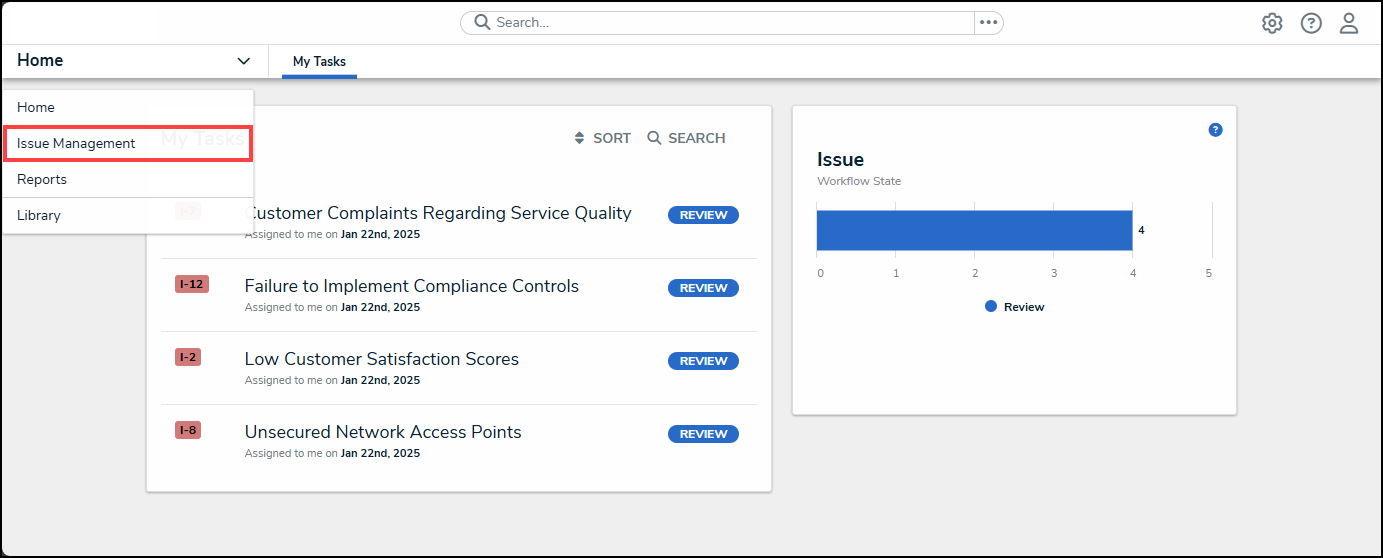
Issue Management Link
- From the Draft screen, click on the Open tab.
Open Tab
- (Optional) Enter an Issue Name in the Search field to narrow the open and extended list.
Search Field
- From the Open screen, click on an Issue on the Open and Extended Issues list.
Open Issue
Reviewing an Open Issue
- The steps to review a new issue through the Open screen are the same as reviewing a new issue through the Draft screen. Please see the following article for instructions on how to review a new issue.