Article Content
| Overview |
| User Account Requirements |
| Related Information/Setup |
| Navigation |
| Adding Management Response and Corrective Actions to an Issue |
Overview
Members of the Issue Team must review the issue and provide a Management Response to attempt to solve the issue as well as provide corrective actions to resolve the issue.
User Account Requirements
The user account used must be added to the Issue Team user group to review an issue.
Related Information/Setup
Please see the Creating a New Corrective Action & Adding it to an Issue article for more information on creating a new corrective action.
Navigation
- From the Home screen, click the Home dropdown.
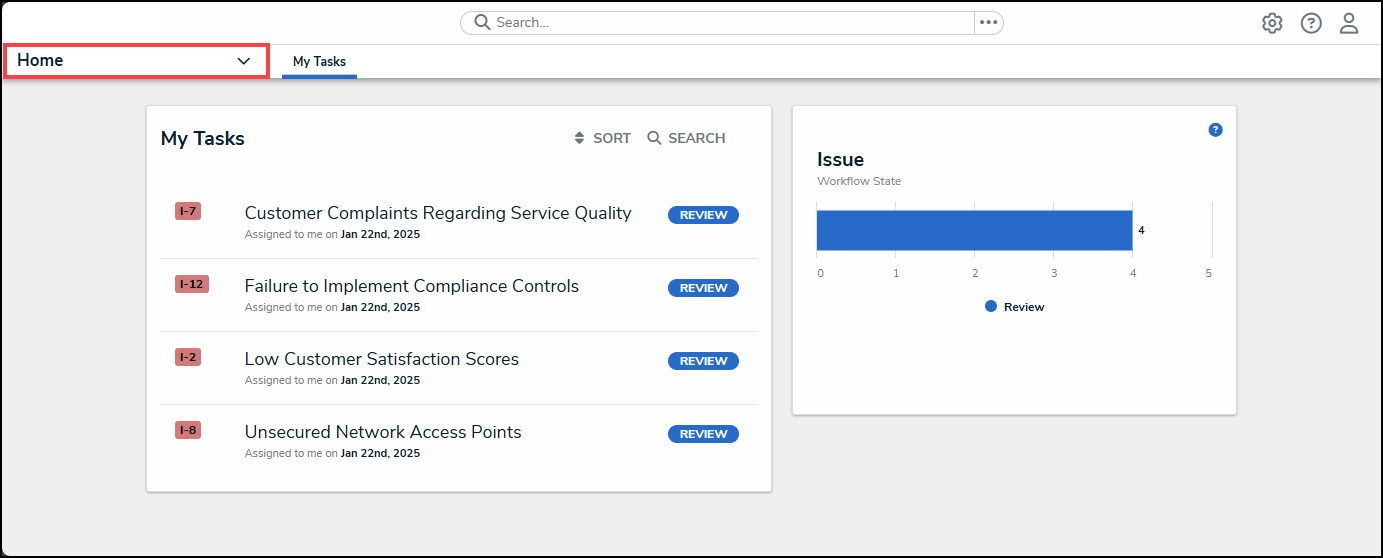
Home Dropdown
- From the Home dropdown menu, select the Issue Management link.
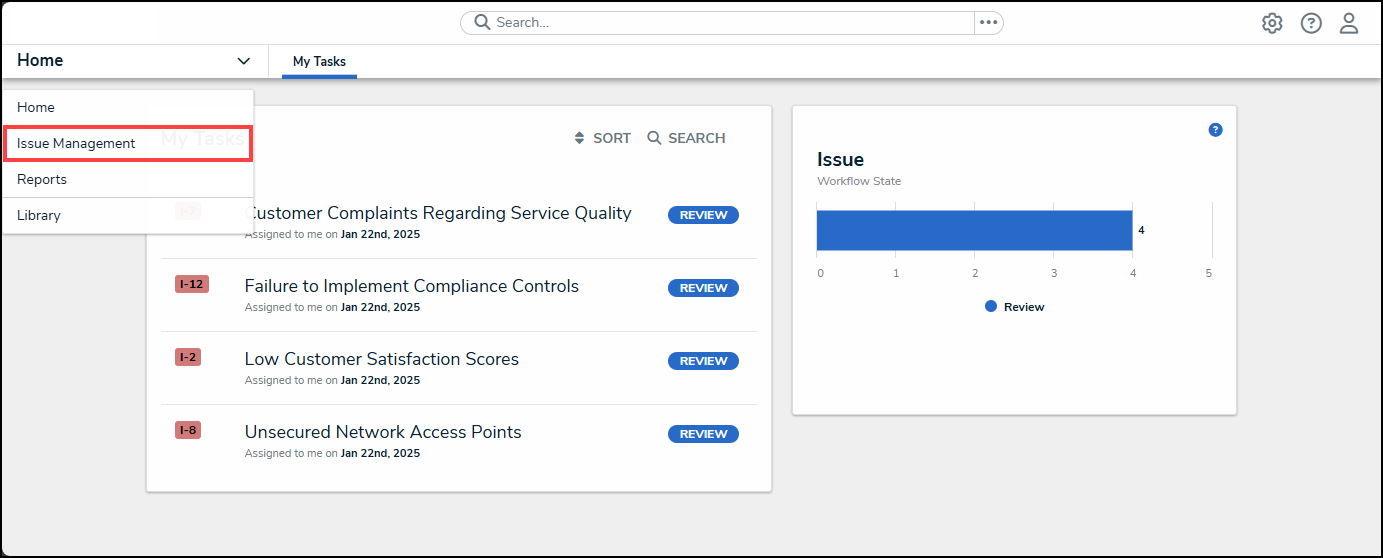
Issue Management Link
- From the Draft screen, click on the Open tab.
Open Tab
- (Optional) Enter an Issue Name in the Search field to narrow the open and extended list.
Search Field
- From the Open screen, click on an Issue on the Open and Extended Issues list.
Open Issue
Adding Management Response and Corrective Actions to an Issue
- From the Details tab, scroll to the Management Response section.
Details Tab
- Click the Management Response field and enter a detailed high-level plan to resolve the issue.
Management Response Field
- Click the Add Existing Corrective Actions link.
Add Existing Corrective Actions Link
- From the Add Existing Corrective Actions pop-up, enter a corrective action name in the Search field to narrow down the corrective action list.
Search Field
- Click on the + ADD link to add the corrective action to the Issue.
+ ADD Link
- Click the x icon to close the Add Existing Corrective Actions pop-up and return to the Details tab. The added corrective actions will appear under the Corrective Actions table on the Details tab.
Corrective Actions Table
- Click the x icon next to a Corrective Action to remove it from the Issue.
x Icon
- Click the + Create New link to add a new Corrective Action if the one you are looking for currently does not exist in the system. Please see the Creating a New Corrective Action & Adding it to an Issue article for further information on how to add a new Corrective Action.