Article Content
| Overview |
| User Account Requirements |
| Related Information/Setup |
| Navigation |
| Adding Closing Remarks and Contributing Factors to an Issue |
Overview
Before an Issue can be submitted for review, a member of the Issue Team must review the Issue and add closing remarks and contributing factors to the Issue.
User Account Requirements
The user account used to log into Resolver must be added to the Issue Team user group.
Related Information/Setup
Please refer to the Submitting an Issue for Review article for further information on submitting an Issue for review.
Navigation
- From the Home screen, click the Home dropdown.
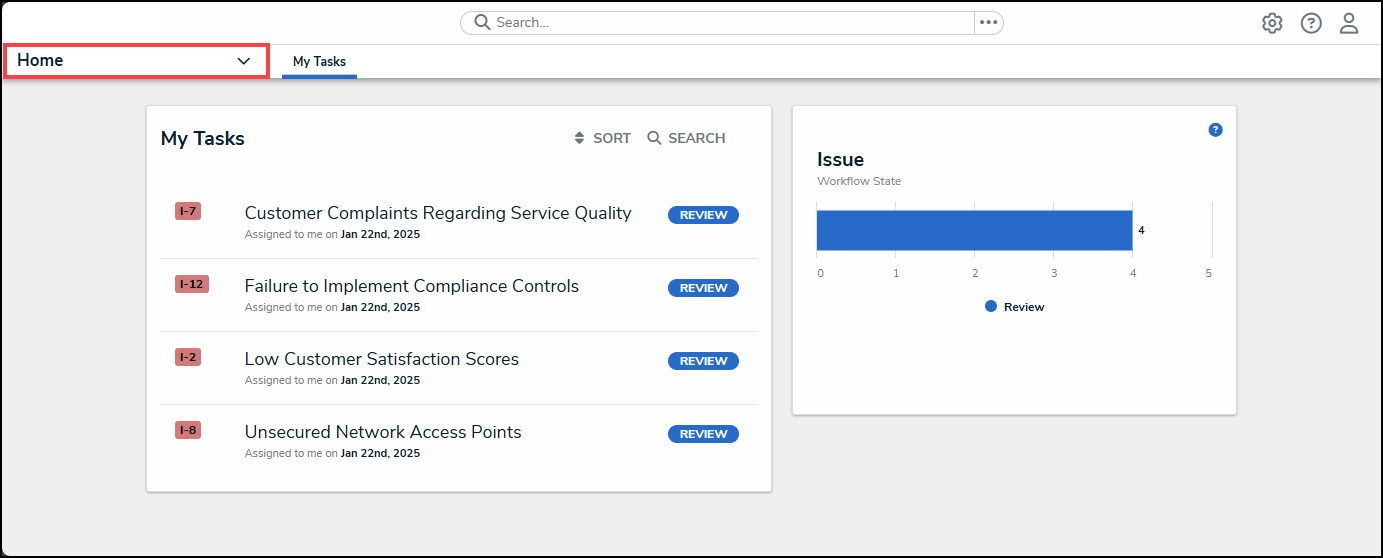
Home Dropdown
- From the Home dropdown menu, select the Issue Management link.
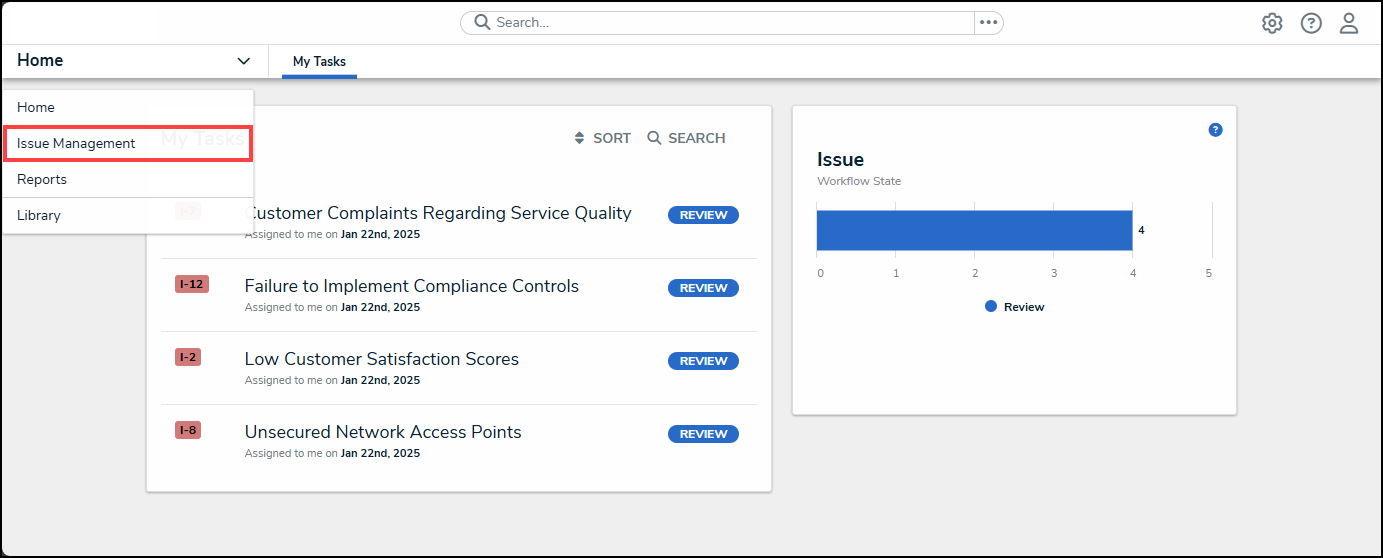
Issue Management Link
- From the Details tab, click the Open tab.
Open Tab
- From the Open screen, enter an Issue Name in the Search field to narrow down the search results list.
Serach Field
- Click on an Issue link.
Issue Link
Adding Closing Remarks and Contributing Factors to an Issue
- From the Details tab, review all Issue details.
- Scroll to the Closing Details section and enter closing comments in the Closing Remarks field. Closing Remarks should indicate how the Issue has been resolved, and all root causes have been addressed.
Closing Remarks Field
- From the Contributing Factor table, click on the Add Existing Contributing Factor link.
Add Existing Contributing Factor Link
- From the Add Existing Contributing Factor pop-up, enter a Contributing Factor Name in the Search field to narrow down the search results list.
Search Field
- Click the + Add link next to a Contributing Factor to add it to the Issue.
+ Add Link
- Click the x button at the top of the Add Existing Contributing Factor pop-up to close the pop-up and return to the Details tab.
x Button