Article Content
| Overview |
| User Account Requirements |
| Related Information/Setup |
| Navigation |
| Submitting an Issue for Review |
Overview
Once an Issue has been reviewed and closing remarks and contributing factors have been added to the Issue an Issue Team member can submit the Issue for a review.
User Account Requirements
The user account used to log into Resolver must be added to the Issue Team user group.
Related Information/Setup
Please refer to the Adding Closing Remarks and Contributing Factors to an Issue article for further information on submitting an Issue for review.
Navigation
- From the Home screen, click the Home dropdown.
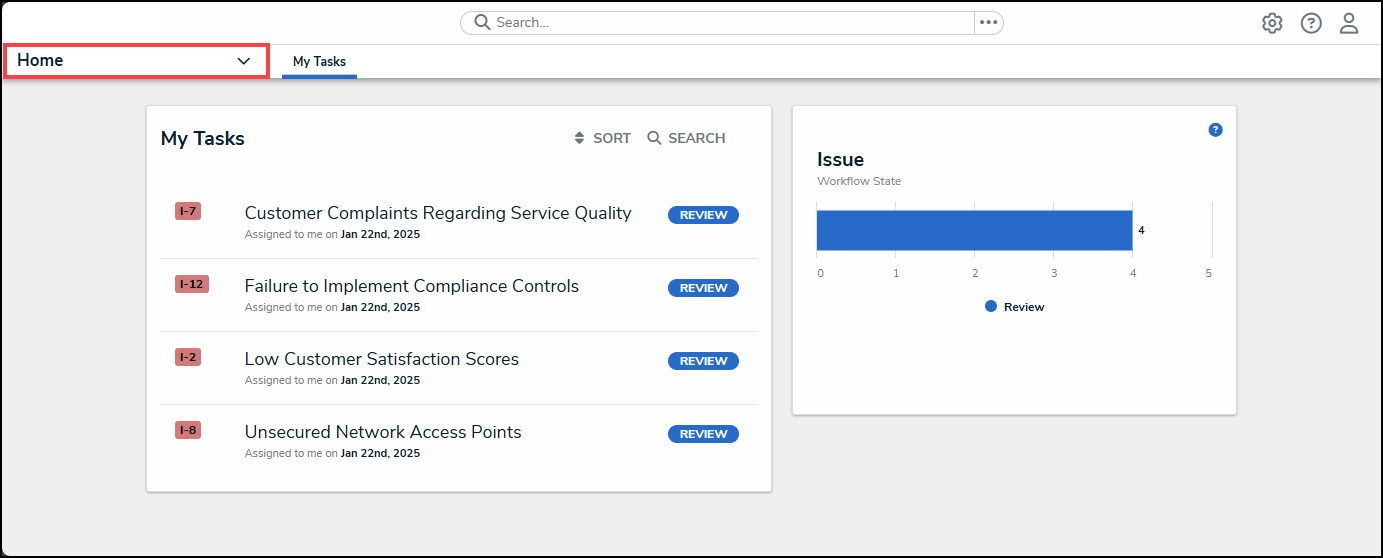
Home Dropdown
- From the Home dropdown menu, select the Issue Management link.
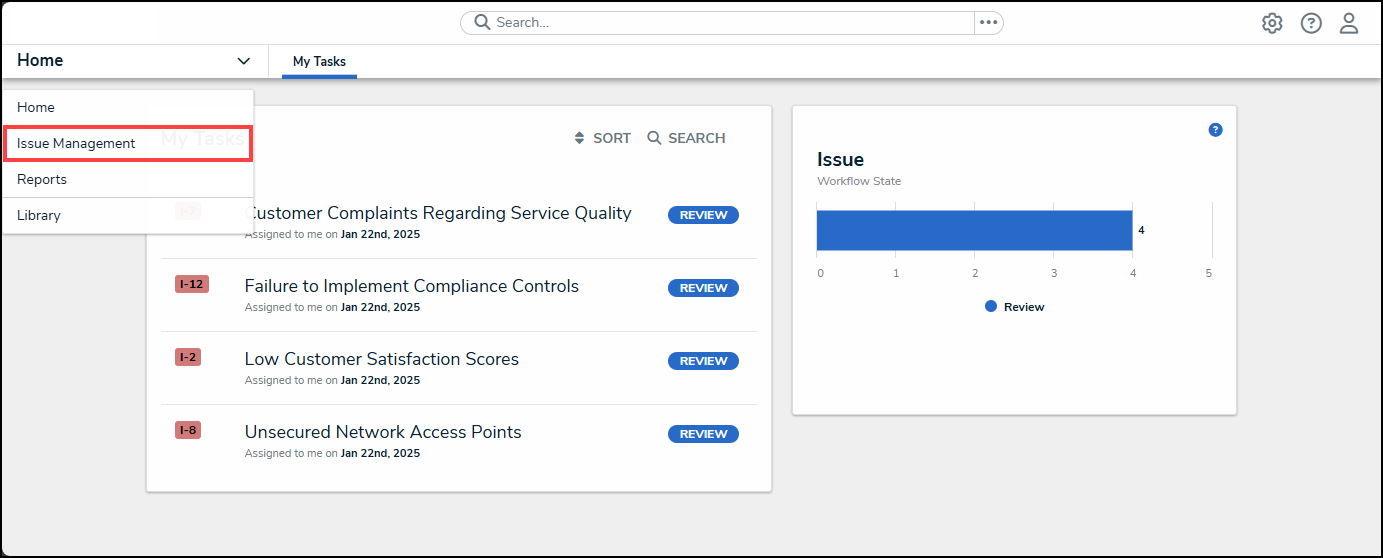
Issue Management Link
- From the Details tab, click the Open tab.
Open Tab
- From the Open screen, enter an Issue Name in the Search field to narrow down the search results list.
Serach Field
- Click on an Issue link.
Issue Link
Submitting an Issue for Review
- From the Details tab, scroll to the bottom of the screen.
Details Tab
- Click the Submit for Review button.
Submit for Review Button
- The Open screen will appear with a system-generated notification indicating that the Issue was moved to Review and can be found on the Review screen.
System-Generated Notification