Article Content
| Overview |
| User Account Requirements |
| Related Information/Setup |
| Navigation |
| Reviewing Issue Details & Key Roles for an Issue in a Draft State |
Overview
As part of the issue review process, a member of the Issue Team must confirm and set Issue Details and Key Roles for the issue.
User Account Requirements
The user account used must be added to the Issue Team user group to review an issue.
Related Information/Setup
Please see the Reviewing Key Dates for an Issue in a Draft State article for more information on issue key dates.
Please see the Review the Management Issues Section for an Issue in a Draft State article for further information on filling out the Management Issues section.
Navigation
- From the Home screen, click the Home dropdown.
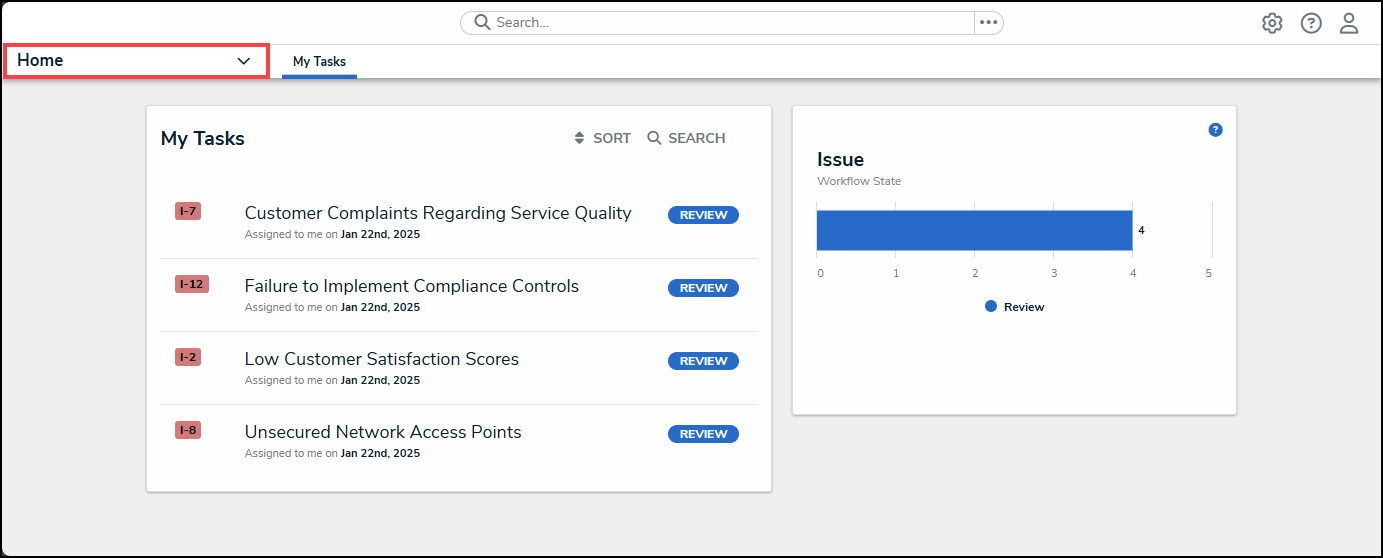
Home Dropdown
- From the Home dropdown menu, select the Issue Management link.
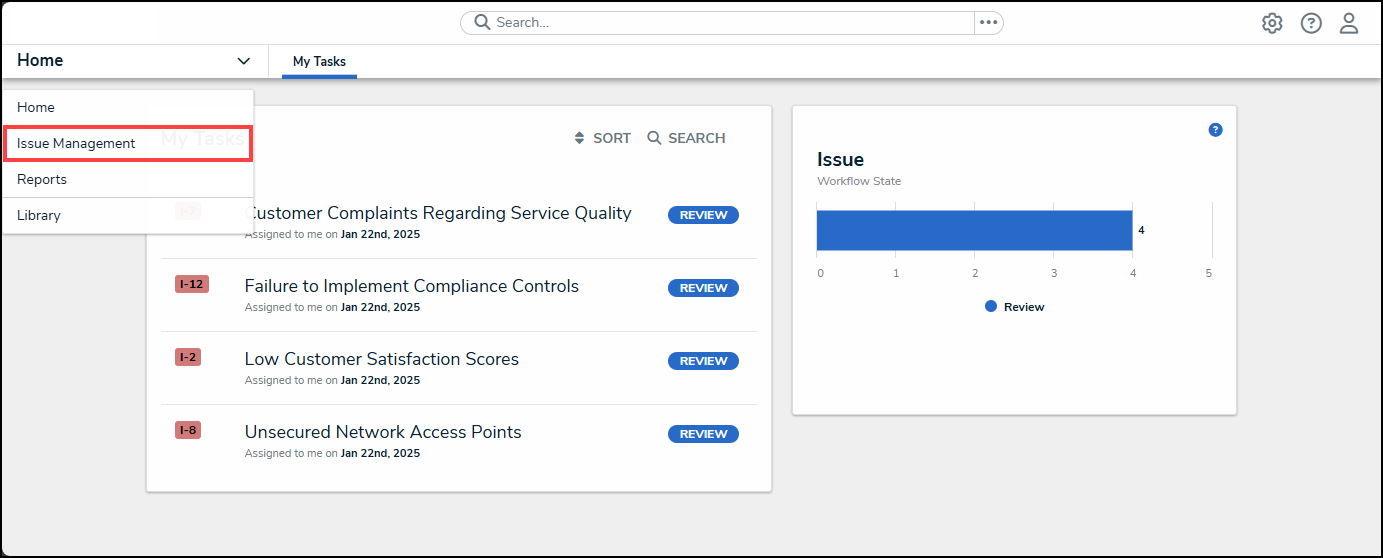
Issue Management Link
- From the Draft screen, click on an Issue on the Draft Issues list.
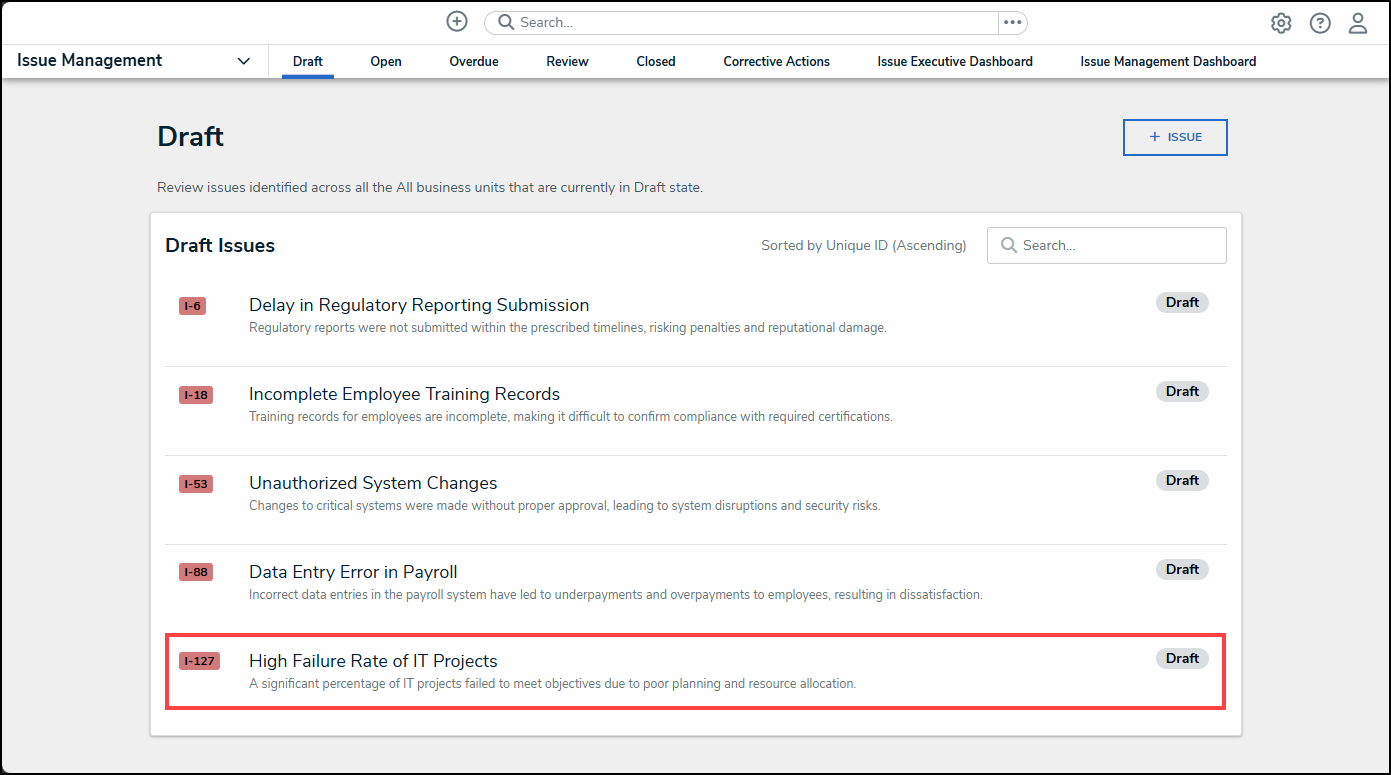
Draft Issue
Reviewing Issue Details & Key Roles for an Issue in a Draft State
- From the Issue Details section on the Details tab, review the issues Description and make any required changes by clicking within the Description field and applying the changes.
Description Field
- Users can edit the Business Unit field by clicking the X icon to remove the business unit from the field.
X Icon
- Click the Business Unit field and enter a business unit name and select a new business unit from the Business Unit dropdown menu. The business unit is a subset of the company (e.g., Information Technology, Sales, Marketing, etc.) The Business Unit is a mandatory field and is used for reporting and categorization purposes.
Business Unit Dropdown Menu
- Users can edit the Issue Category field by clicking the X icon to remove the issue category from the field.
- Click the Issue Category field and enter an issue category name and select a new issue category from the Issue Category dropdown menu. The Issue Category field is used for reporting and categorization purposes.
Issue Category Dropdown Menu
- The Repeat Findings field will appear if either the Internal Audit Findings or Internal Controls Findings options are selected from the Identified By dropdown when creating the Issue. The Repeat Findings field indicates that there are issues that were not resolved as a part of the last audit.
- Select whether or not to include repeat findings with the Issue from the Repeat Findings dropdown menu.
Repeat Findings Dropdown Menu
- From the Key Roles section, click the X icon in the Issue Owner field to remove the issue owner from the field.
- Click the Issue Owner field and enter a username or user group name and select a new user or user group from the Issue Owners dropdown menu. The Issue Owner is responsible for documenting the details of the issue.
Issue Owner Dropdown Menu
- Click the Issue Delegate field and enter a username or user group name and select a user or user group from the Issue Delegate dropdown menu. The Issue Delegate is responsible for documenting the details of the issue if the Issue Owner cannot.
Issue Delegate Dropdown Menu