Article Content
Overview
Users can reopen a closed Corrective Action if more information is required.
User Account Requirements
The user account used to log into Resolver must be added to the Issue Team user group.
Navigation
- From the Home screen, click the Home dropdown.
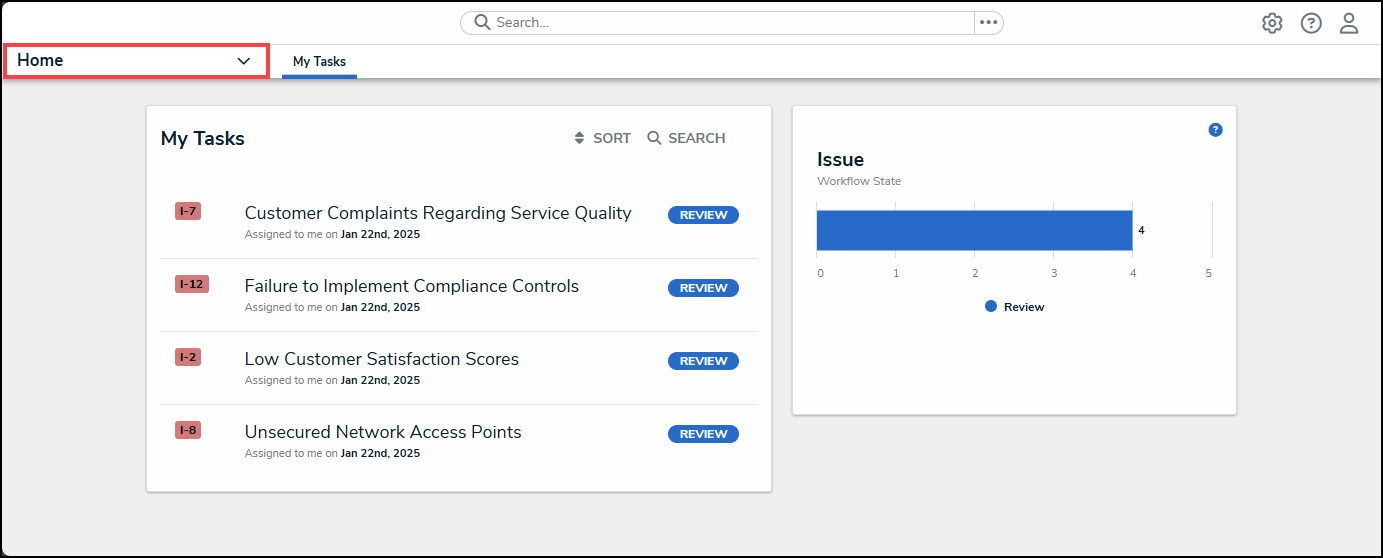
Home Dropdown
- From the Home dropdown menu, select the Issue Management link.
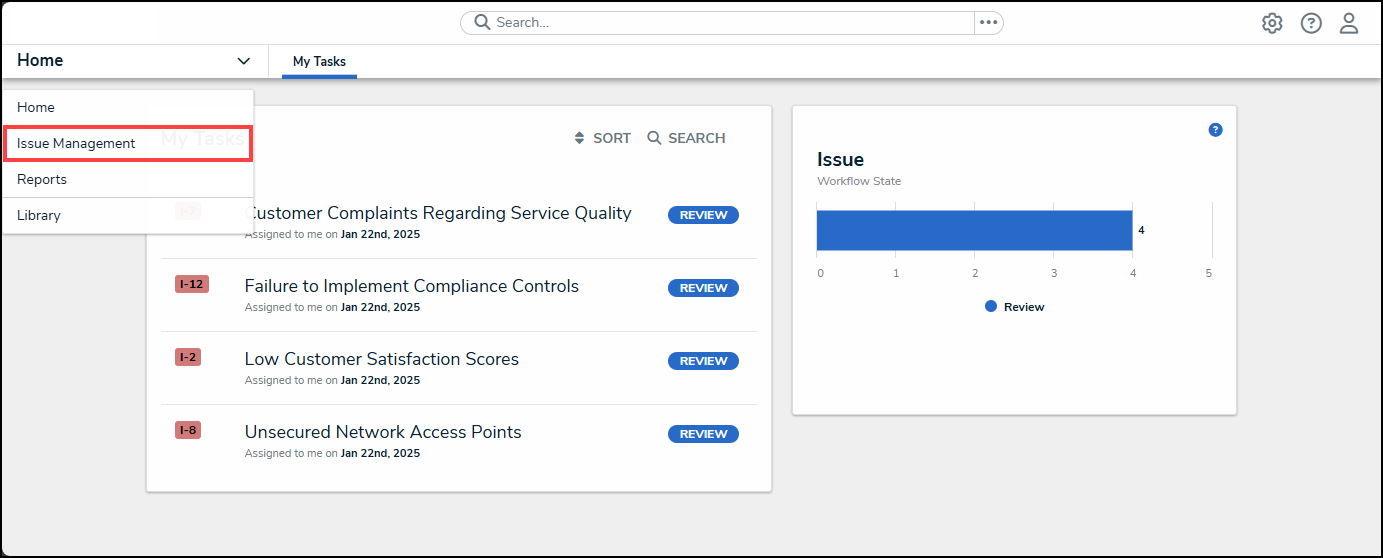
Issue Management Link
- From the Details tab, click the Corrective Actions tab.
Corrective Actions Tab
- From the Corrective Actions screen, scroll to the Closed Corrective Actions section.
Closed Corrective Actions Section
- Enter a Corrective Action Name in the Search field to narrow down the search results list.
Serach Field
- Click on a Corrective Action link in a Closed status.
Corrective Action Link
Reopening a Closed Corrective Action
- From the Details tab, scroll to the bottom of the screen.
Details Tab
- Click the Re-open Corrective Action button.
Re-open Corrective Action Button
- The Corrective Actions screen will appear with a system-generated notification indicating that the Corrective Action was moved to Open and can be found under the In Progress Corrective Actions section.
System-Generated Notification