Article Content
Overview
Once a Corrective Action has been reviewed and implemented the Corrective Action can be closed. Corrective Actions connected to an Issue must be closed before the connected Issue can be closed.
User Account Requirements
The user account used to log into Resolver must be added to the Issue Team user group.
Navigation
- From the Home screen, click the Home dropdown.
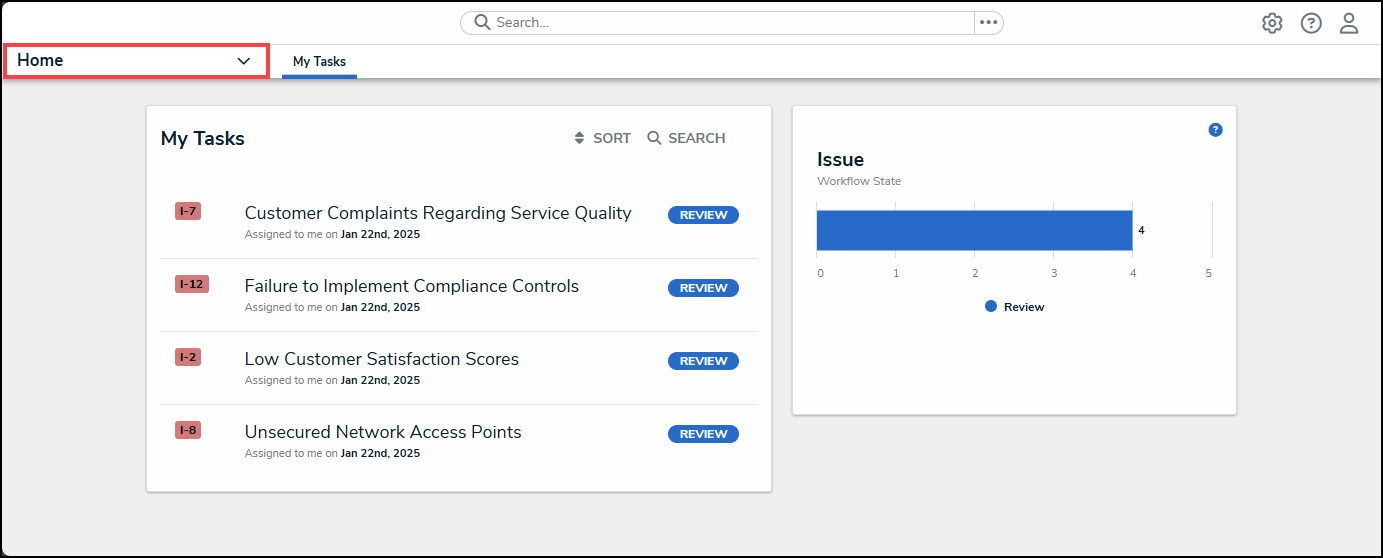
Home Dropdown
- From the Home dropdown menu, select the Issue Management link.
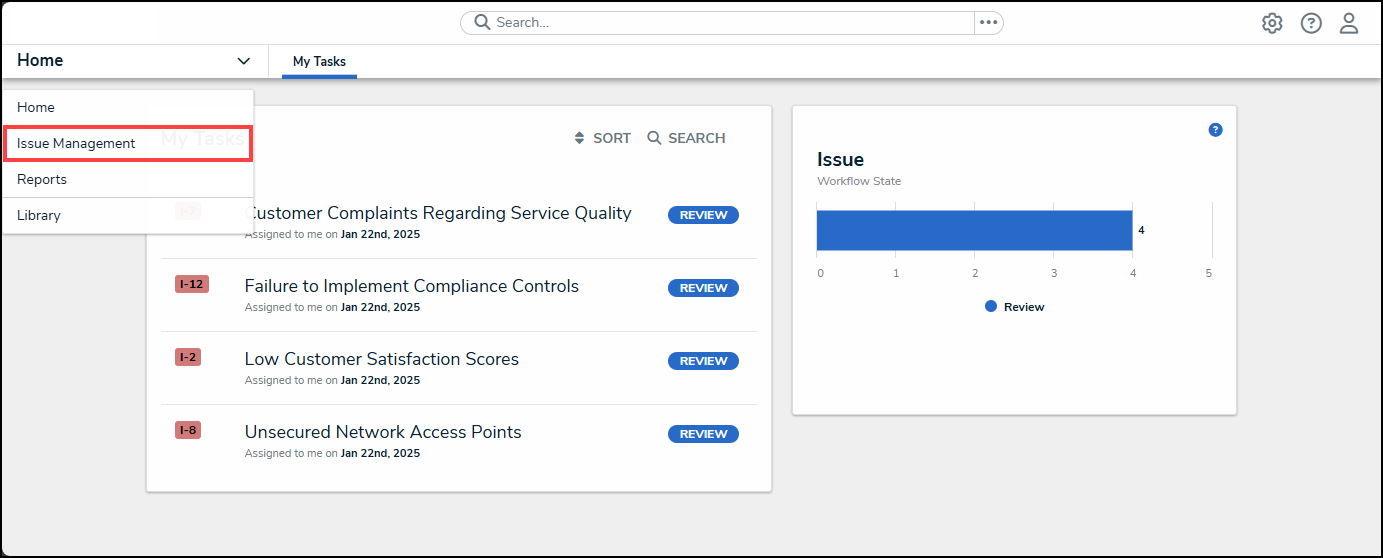
Issue Management Link
- From the Details tab, click the Corrective Actions tab.
Corrective Actions Tab
- From the Corrective Actions screen, enter a Corrective Action Name in the Search field to narrow down the search results list.
Serach Field
- Click on a Corrective Actions link in a Review status.
Corrective Action Link
Submitting a Corrective Action for Review
- From the Details tab, scroll to the bottom of the screen.
Details Tab
- Click the Close Corrective Action button.
Close Corrective Action Button
- The Corrective Actions screen will appear with a system-generated notification indicating that the Corrective Action was moved to Closed and can be found under the Closed Corrective Actions section.
System-Generated Notification