Article Content
| Overview |
| User Account Requirements |
| Related Information/Setup |
| Navigation |
| Reviewing Key Dates for an Issue in a Draft State |
Overview
As part of the issue review process, a member of the Issue Team must confirm and set Key Dates for the issue. These Key Dates drive the issue, making sure that it stays on track. If a Due Date or Extended Due Date is missed, the system will automatically send the Issue Owner an email notification reminding the user about the outstanding issue.
User Account Requirements
The user account used must be added to the Issue Team user group to review an issue.
Related Information/Setup
Please see the Review the Management Issues Section for an Issue in a Draft State article for further information on filling out the Management Issues section.
Please see the Reviewing Issue Details & Key Roles for an Issue in a Draft State article for further information on filling out the Issue Details & Key Roles sections.
Navigation
- From the Home screen, click the Home dropdown.
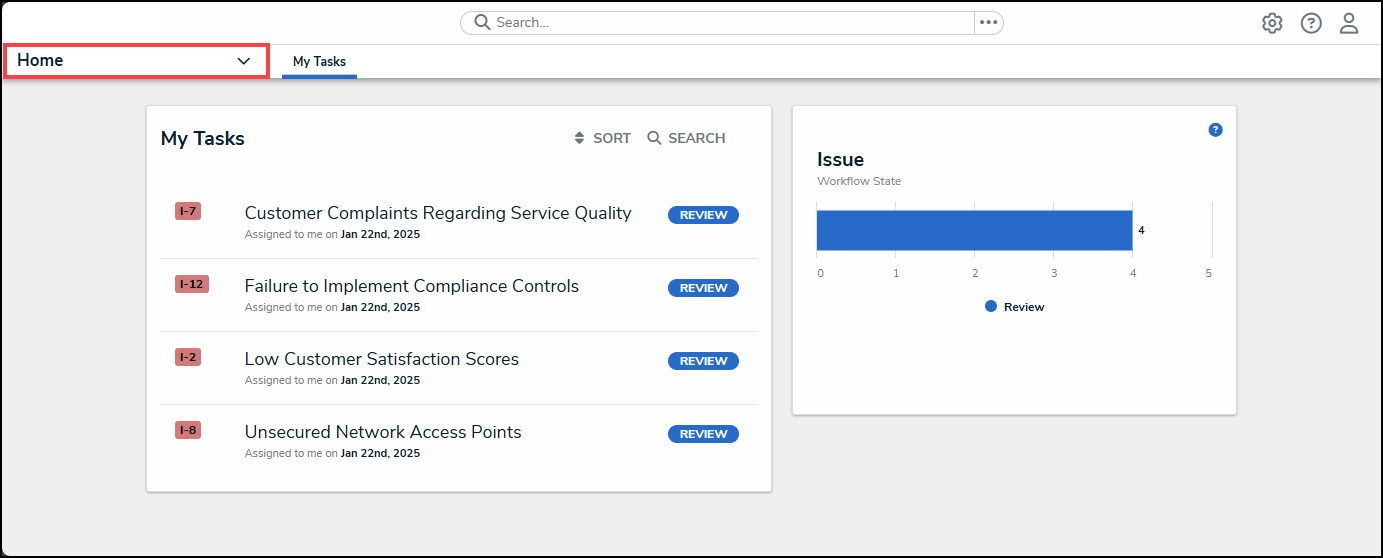
Home Dropdown
- From the Home dropdown menu, select the Issue Management link.
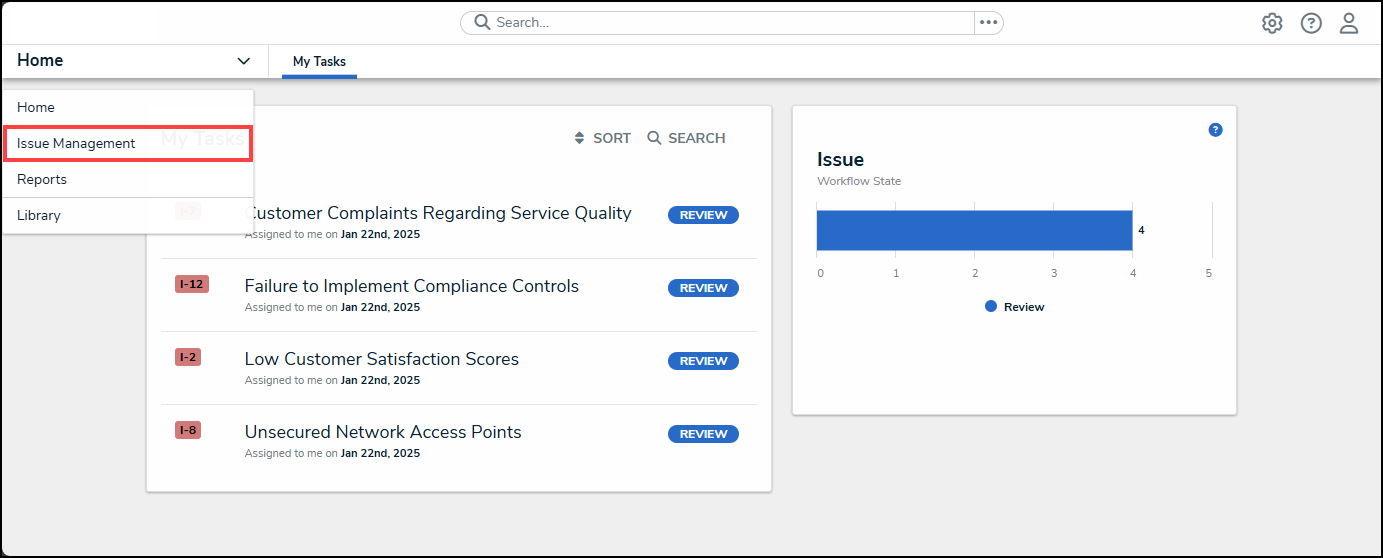
Issue Management Link
- From the Draft screen, click on an Issue on the Draft Issues list.
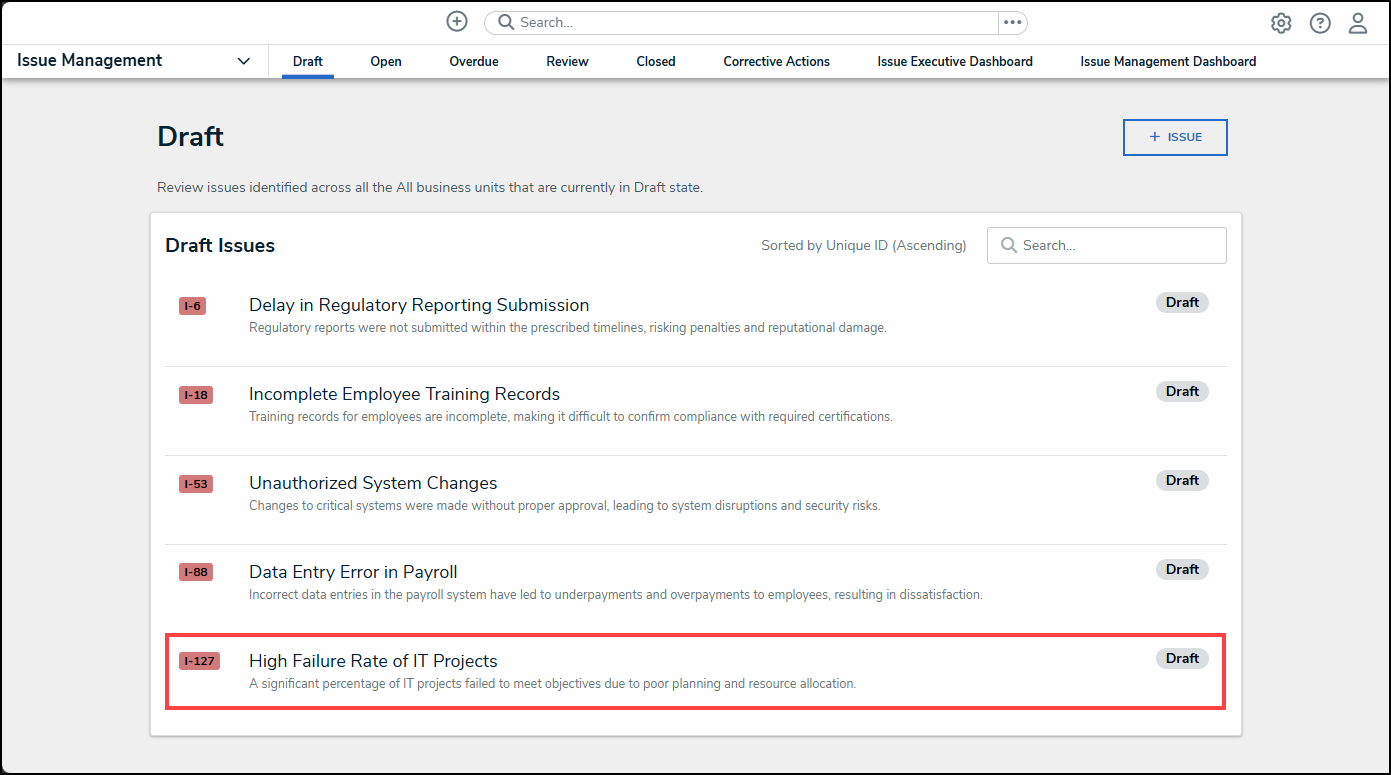
Draft Issue
Reviewing Key Dates for an Issue in a Draft State
- From the Details tab, scroll to the Key Dates section.
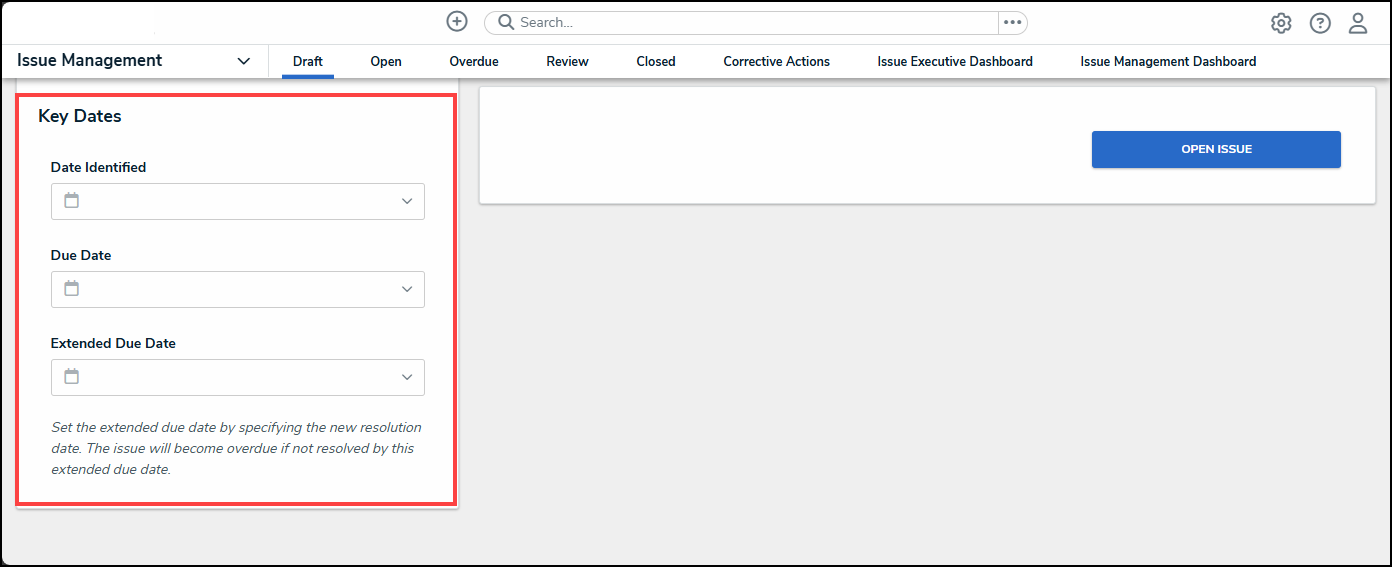
Key Dates Section
- From the Key Dates section, click the Data Identified field and select a Date from the Calendar pop-up. The Date Identified field indicates the date the issue was originally identified.
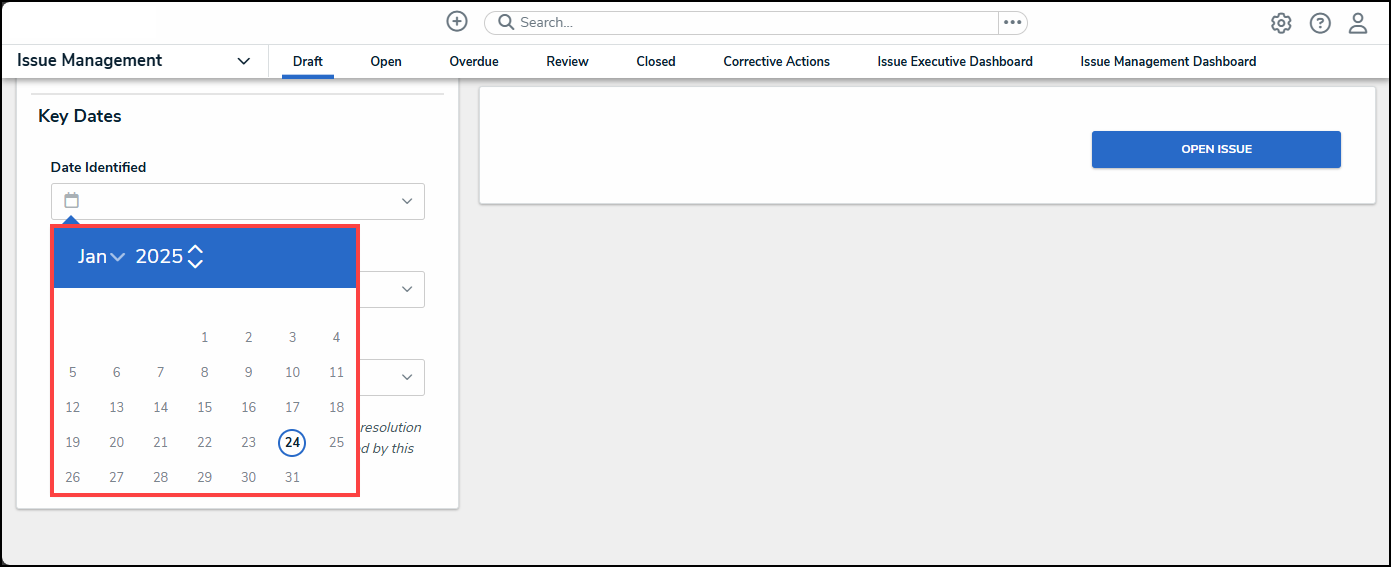
Calendar Pop-up
- (Optional) Use the Month dropdown and the Year increase and decrease arrows to change the month and year on the Calendar pop-up.
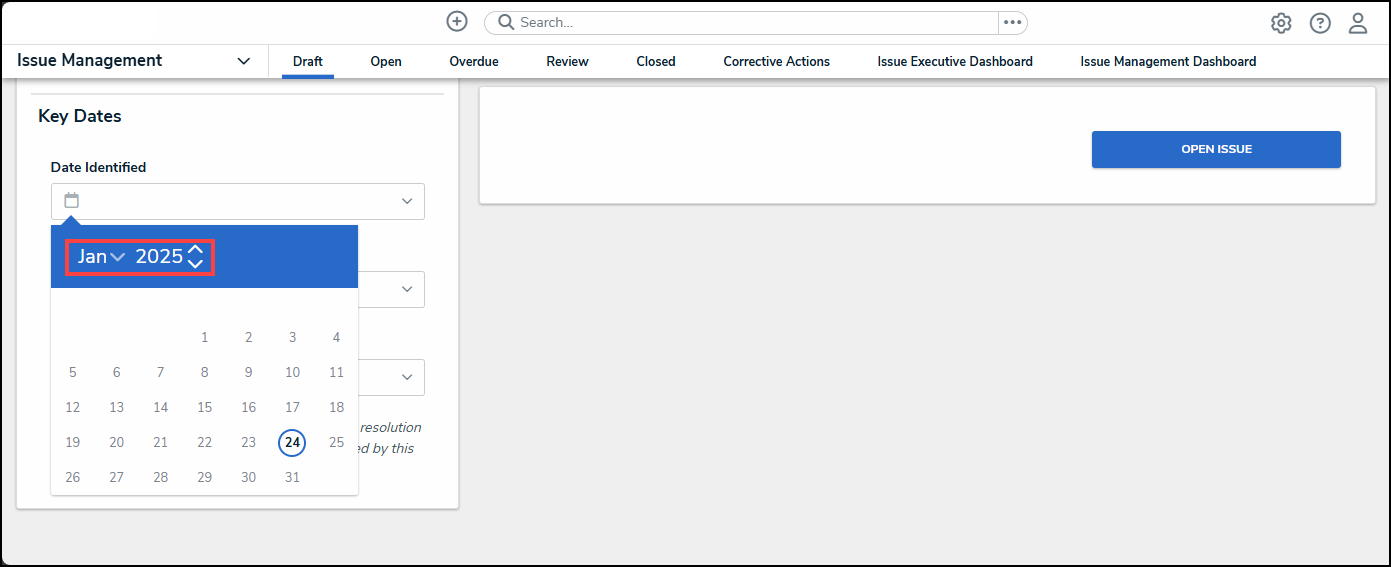
Month Dropdown and Year Arrows
- Click the Due Data field and select a Date from the Calendar pop-up. The Due Date field is the date the issue should be resolved. If the Due Date is missed, the system will automatically send the Issue Owner an email notification reminding the user about the outstanding issue.
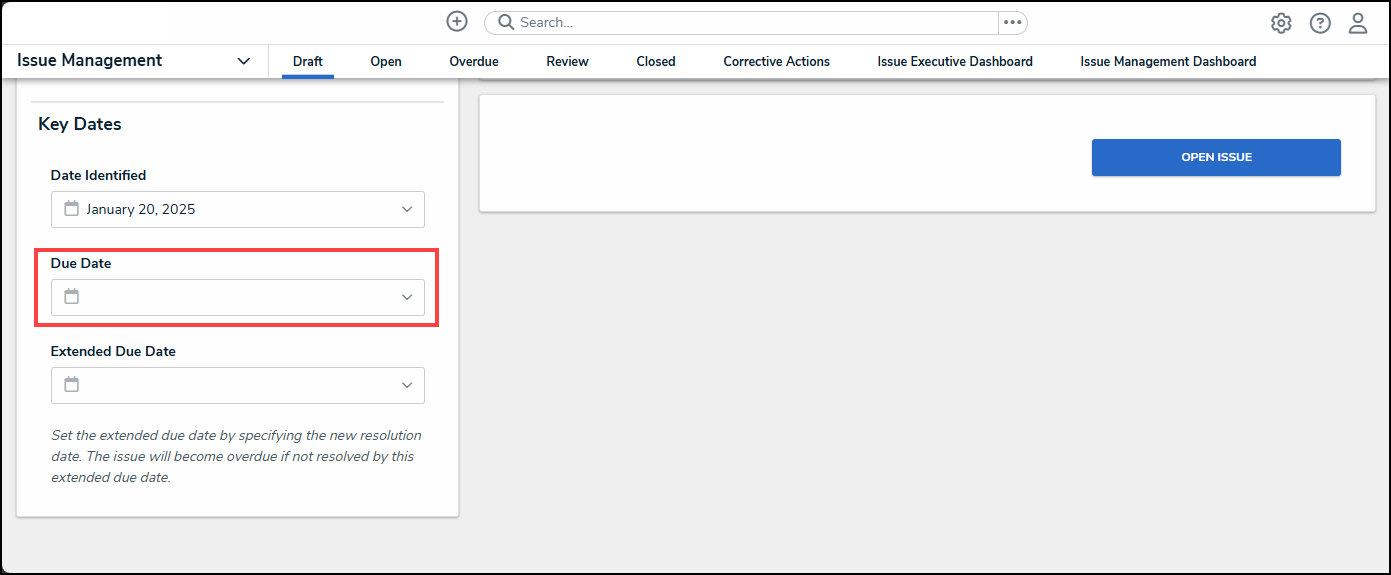
Due Date Dropdown
- Click the Extended Due Data field and select a Date from the Calendar pop-up. The Extended Due Date field is used to extend the date entered in the Due Date field and becomes the new issue due date. If the Extended Due Date is missed, the system will automatically send the Issue Owner an email notification reminding the user about the outstanding issue.
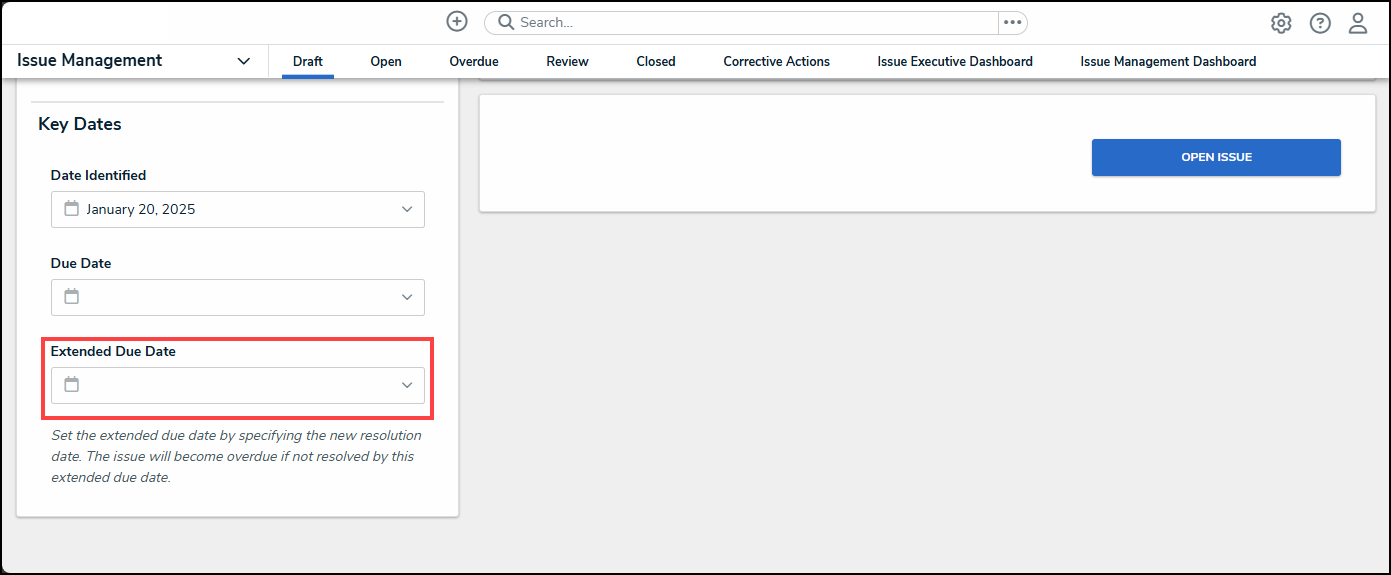
Extended Due Date Dropdown