Article Content
| Overview |
| User Account Requirements |
| Navigation |
| Creating an Issue |
Overview
Users can identify and document a new issue with the application by creating a new issue.
User Account Requirements
The user account used to log into Resolver must be added to the Issue Team user group.
Navigation
- From the Home screen, click the Home dropdown.
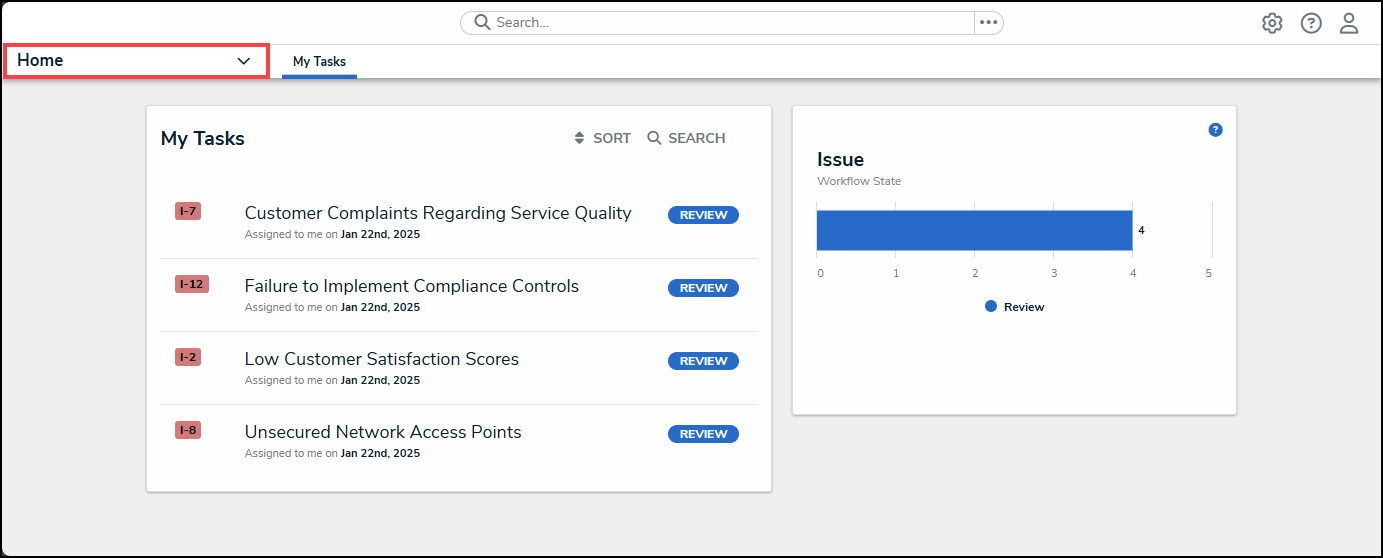
Home Dropdown
- From the Home dropdown menu, select the Issue Management link.
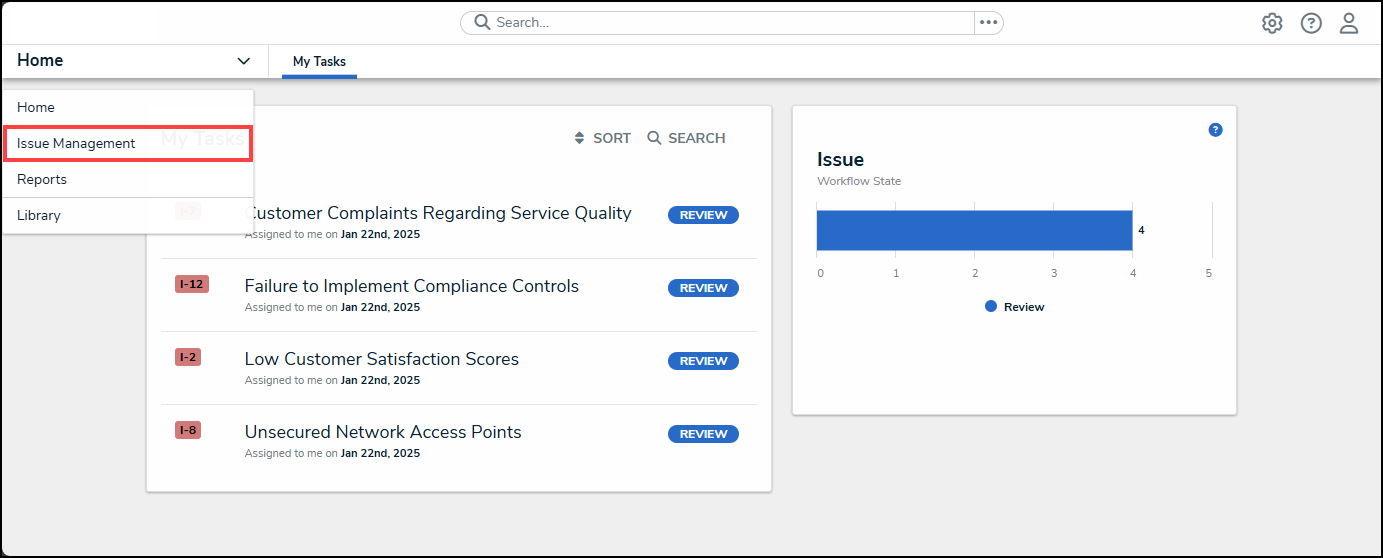
Issue Management Link
- From the Draft screen, click the + Issue button.
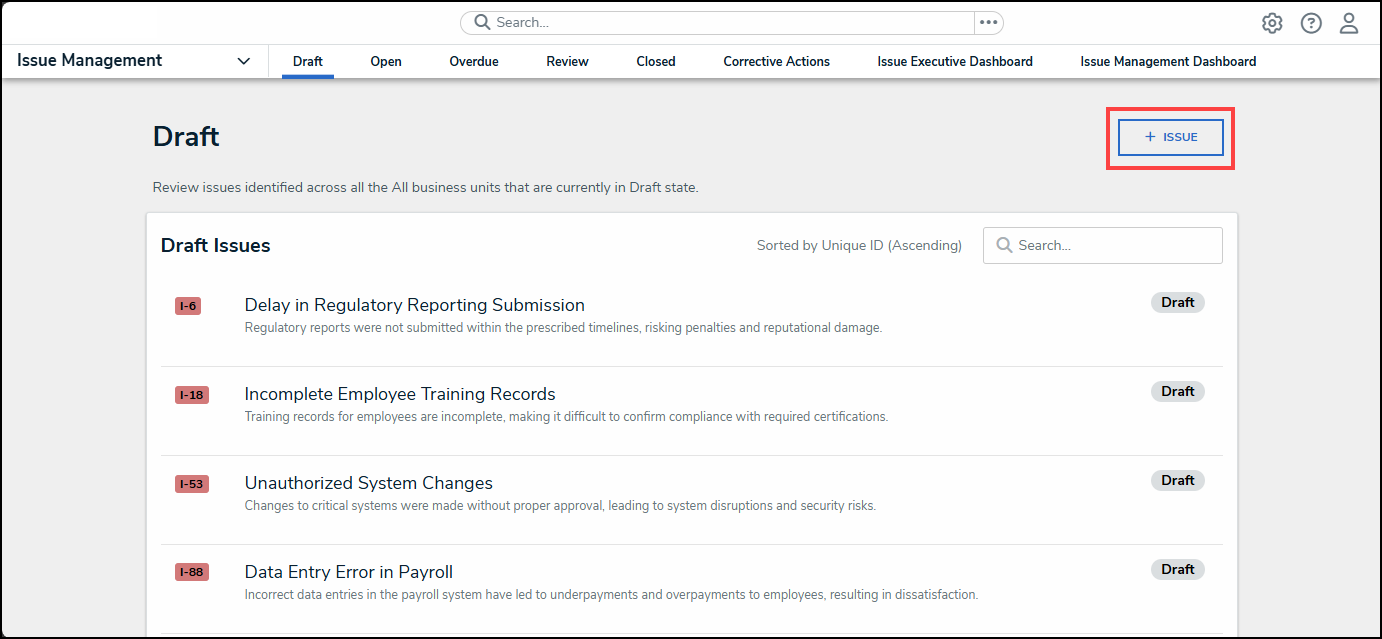
+ Issue Button
Creating a New Issue
- From the Create a New Issue screen, enter an issue name in the Issue Name field. The Issue Name field is a brief description outlining the issue that can be used to identify the issue throughout the application.
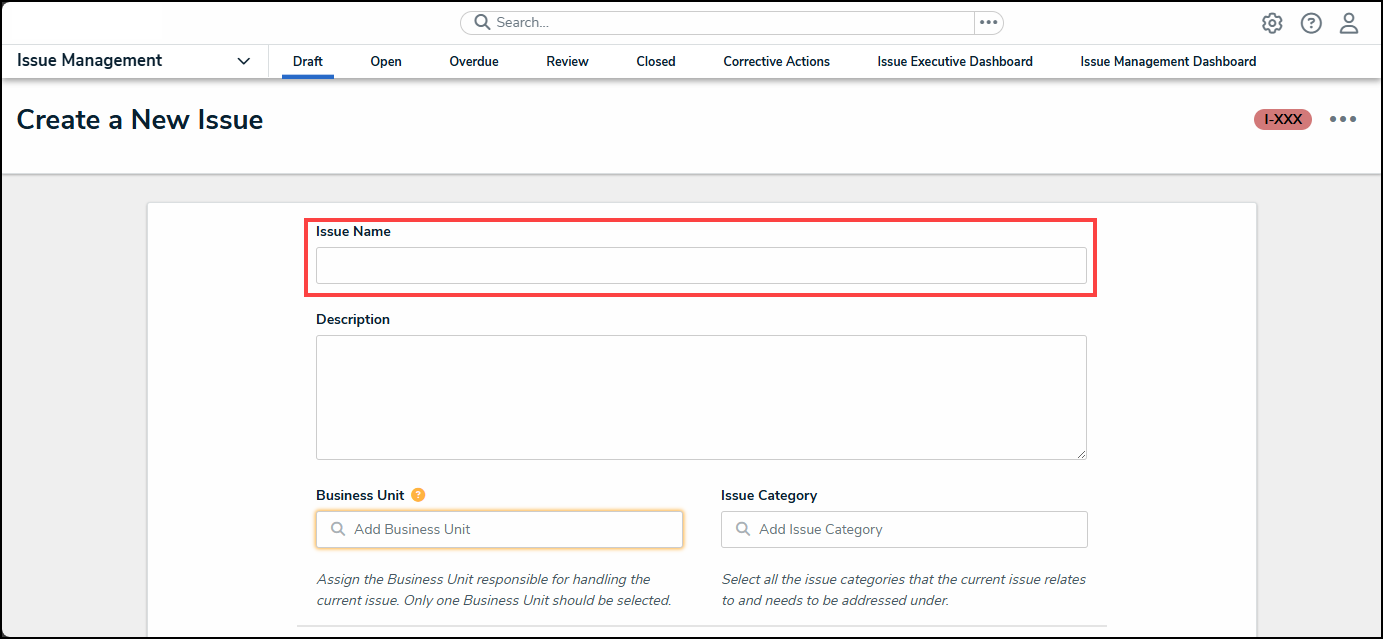
Issue Name Field
- Enter a detailed description outlining the Issue in the Description field.
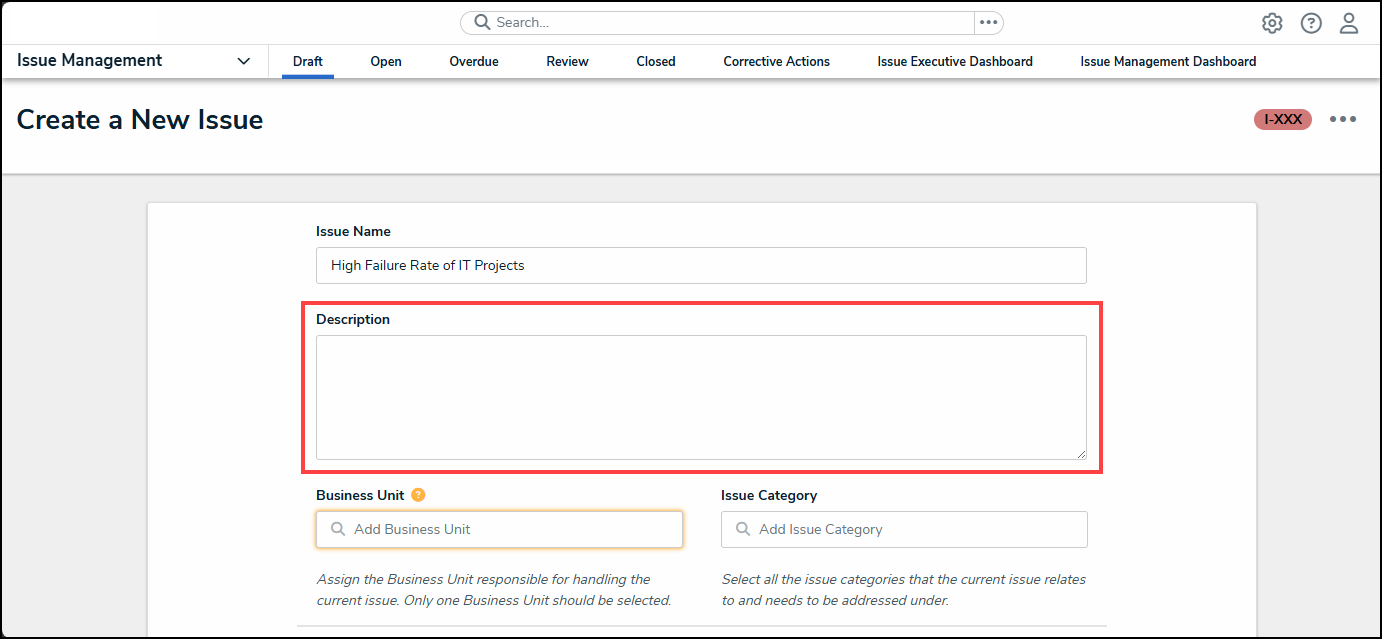
Description Field
- Click the Business Unit field and enter a business unit name. Select a business unit from the Business Unit dropdown menu. The business unit is a subset of the company (e.g., Information Technology, Sales, Marketing, etc.) The Business Unit is a mandatory field and is used for reporting and categorization purposes.
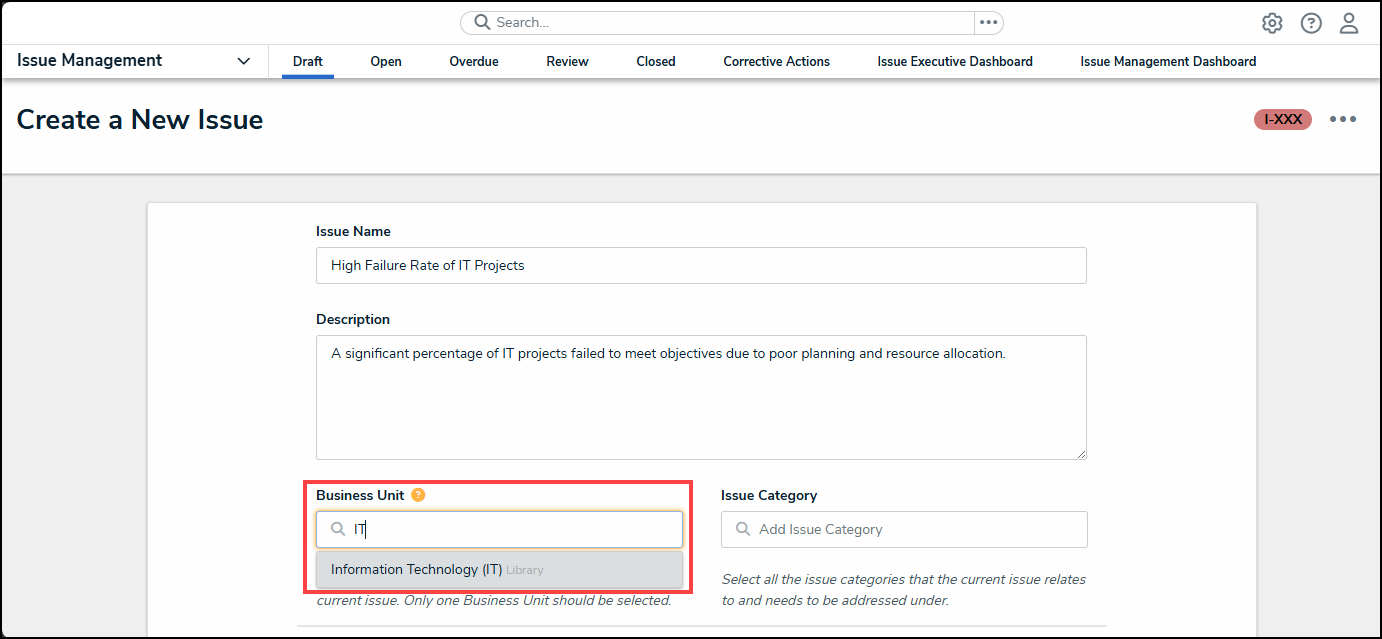
Business Unit Dropdown Menu
- Click the Issue Category field and enter an issue category name. Select an issue category from the Issue Category dropdown menu. The Issue Category field is used for reporting and categorization purposes.
|
Note: Only one business unit should be added to an issue. |
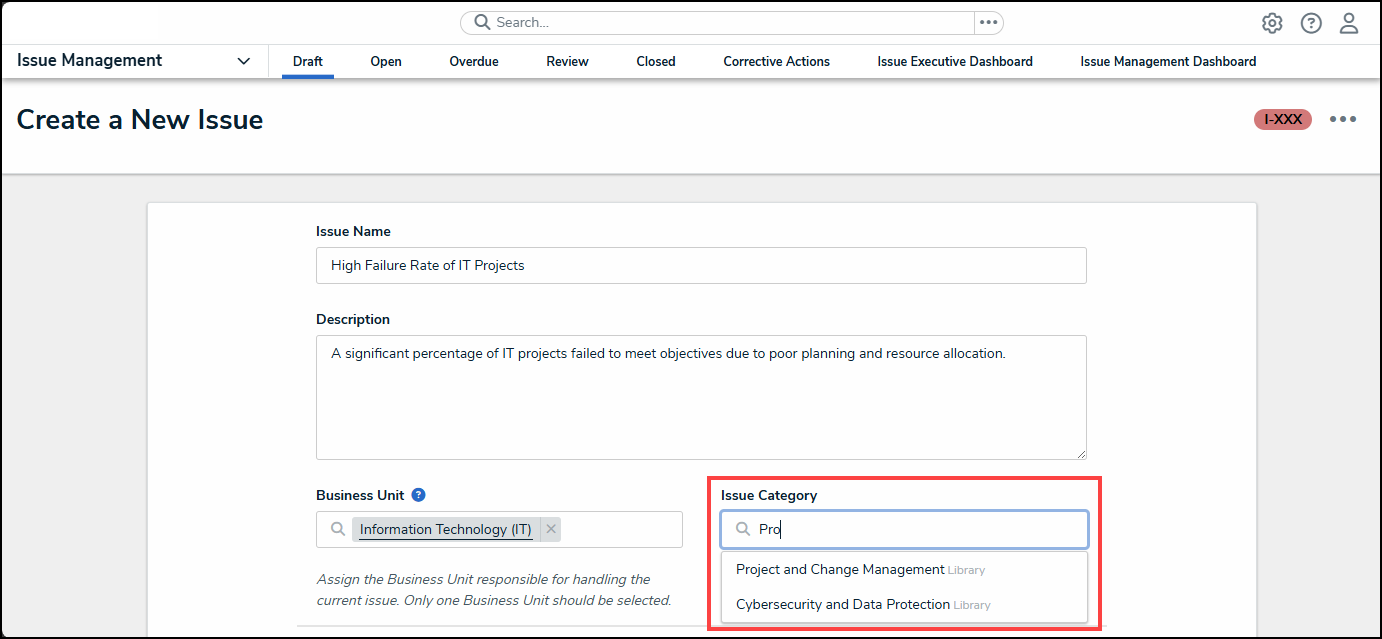
Issue Category Dropdown Menu
- From the Issue Owner section, enter a username or user group name in the Issue Owner field and select an issue owner from the dropdown menu. The Issue Owner is responsible for documenting the details of the issue.
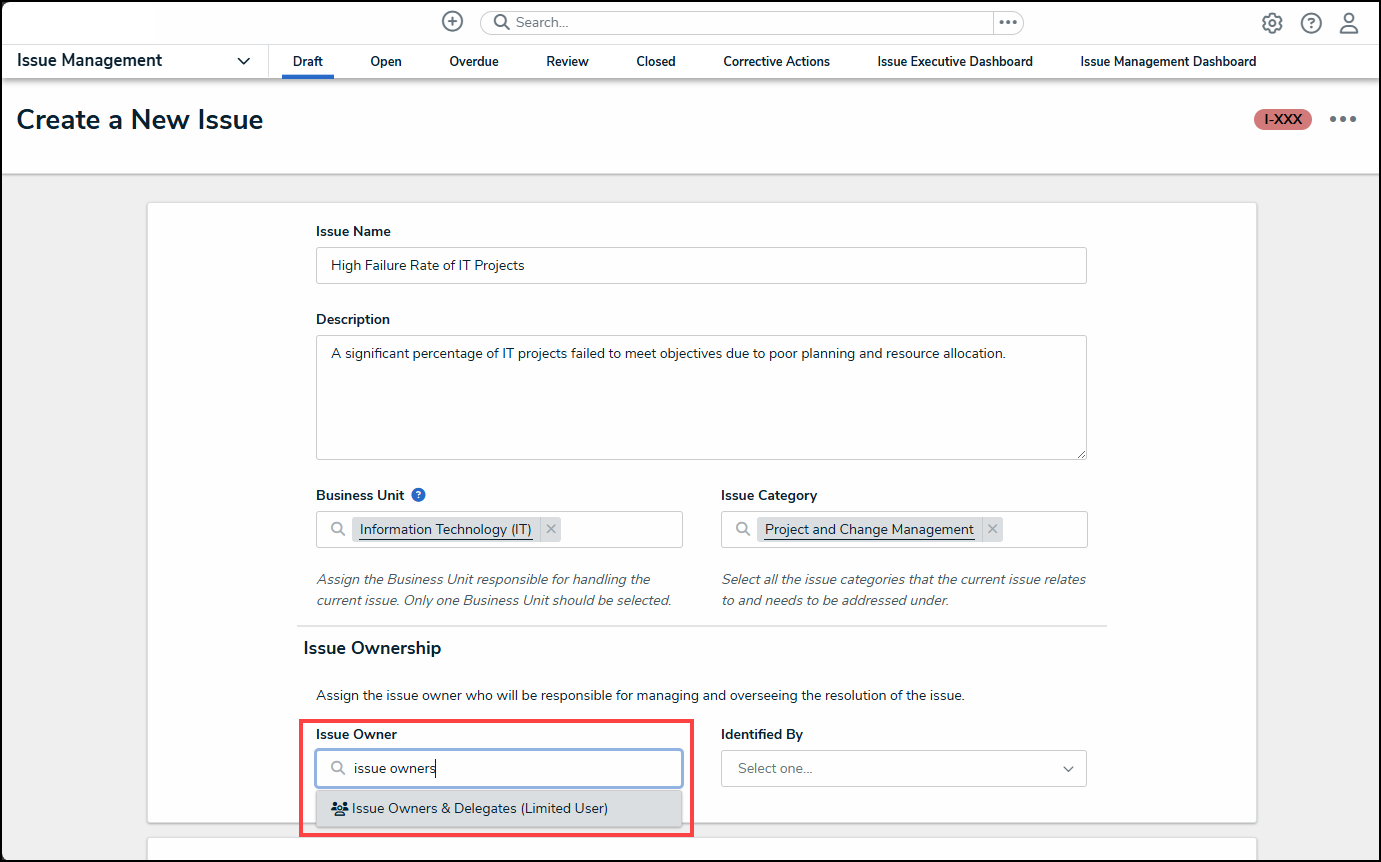
Issue Owner Dropdown Menu
- Click the Identified By field and select the method used to identify the issue.
- Control Self Assessment
- Risk Self Assessment
- Compliance Assessment
- Internal Audit Findings
- Internal Controls Findings
- External Audit
- Regulator
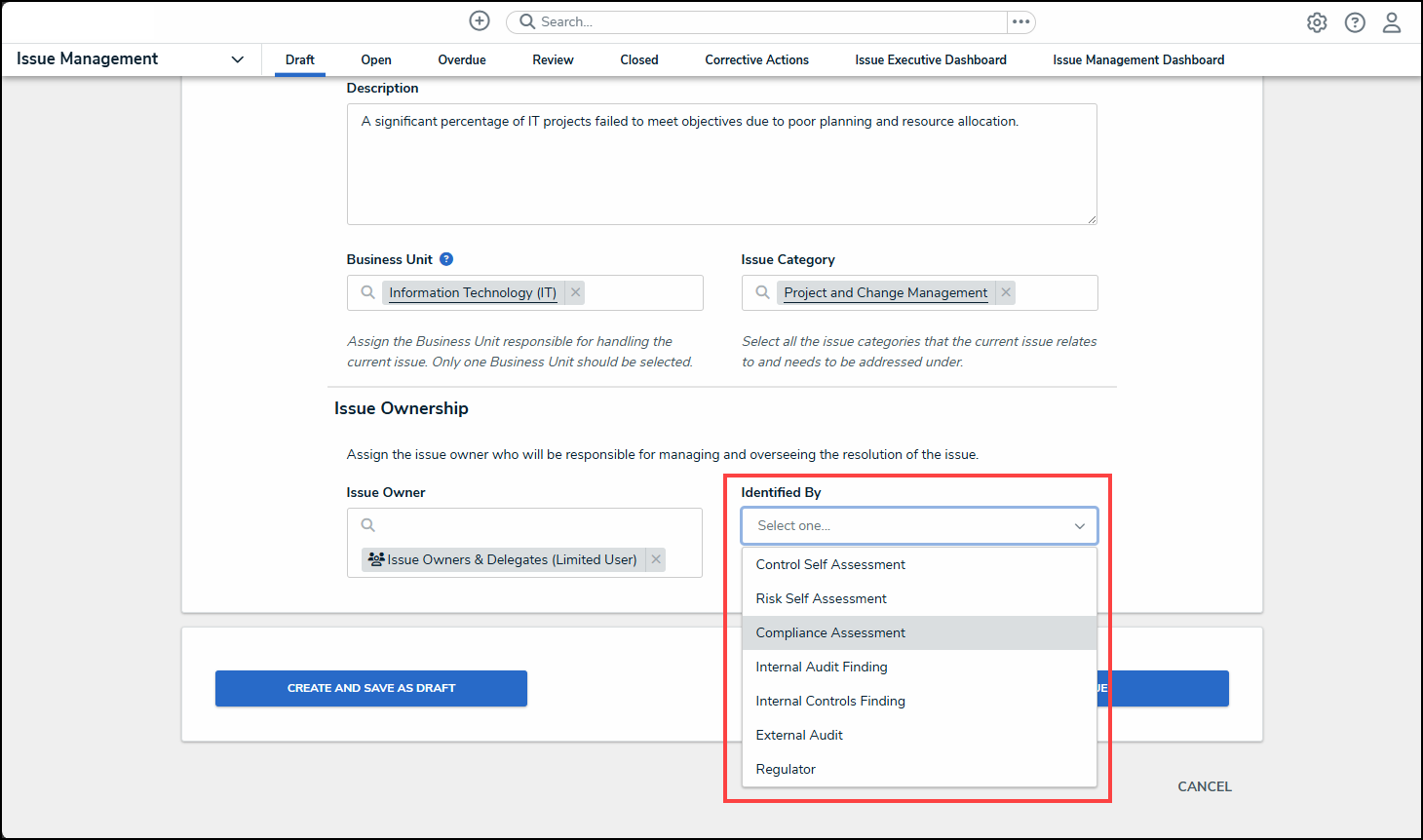
Identified By Dropdown Menu
- Click on one of the following buttons to create the new issue:
- Create and Save as Draft: This button allows you to save the issue as a draft if you intend on adding additional information or do not have all the required information when creating the issue.
- Open Issue: This button opens the issue, moving it to an Active status.
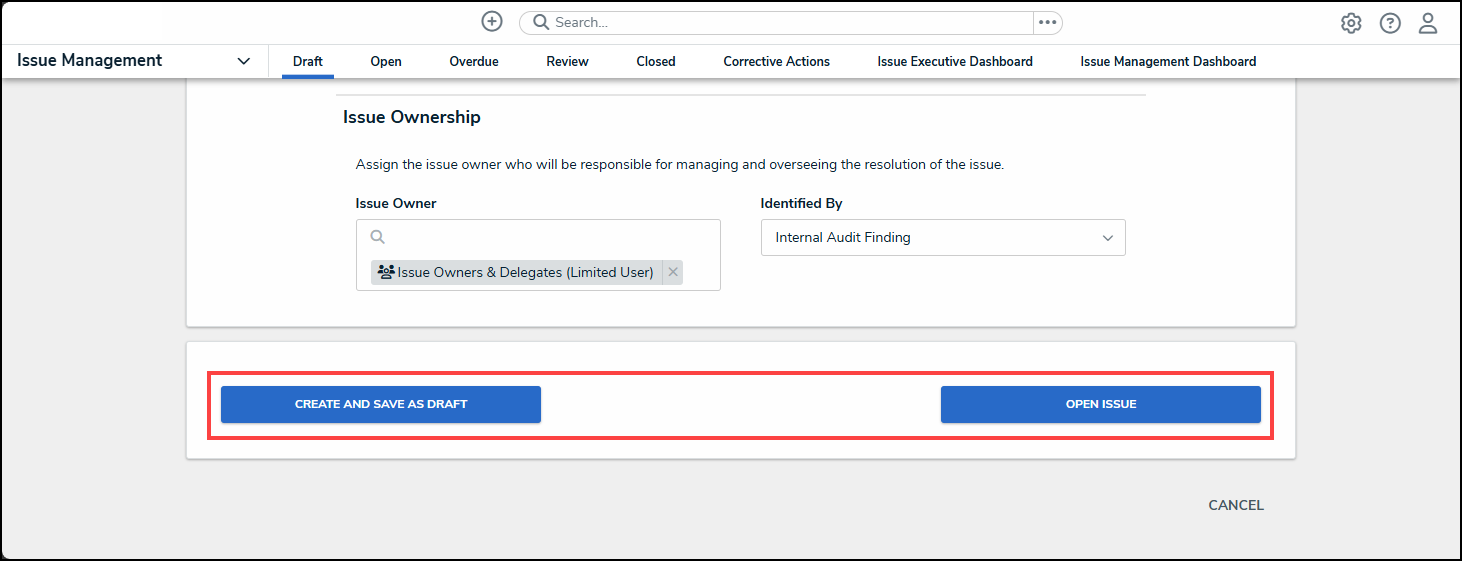
Buttons