Article Content
| Overview |
| User Account Requirements |
| Related Information/Setup |
| Navigation |
| Moving an Issue in a Draft State to an Open State |
Overview
Once an Issue has been reviewed by a member of the Issue team, the Issue can be moved from a Draft state to an Open state.
User Account Requirements
The user account must be added to the Issue Team user group to move an issue to an open state.
Related Information/Setup
Please see the Reviewing Key Dates for an Issue in a Draft State article for more information on issue key dates.
Please see the Review the Manage Issues Section for an Issue in a Draft State article for further information on filling out the Management Issues section.
Please see the Reviewing Issue Details & Key Roles for an Issue in a Draft State article for further information on filling out the Issue Details & Key Roles sections.
Navigation
- From the Home screen, click the Home dropdown.
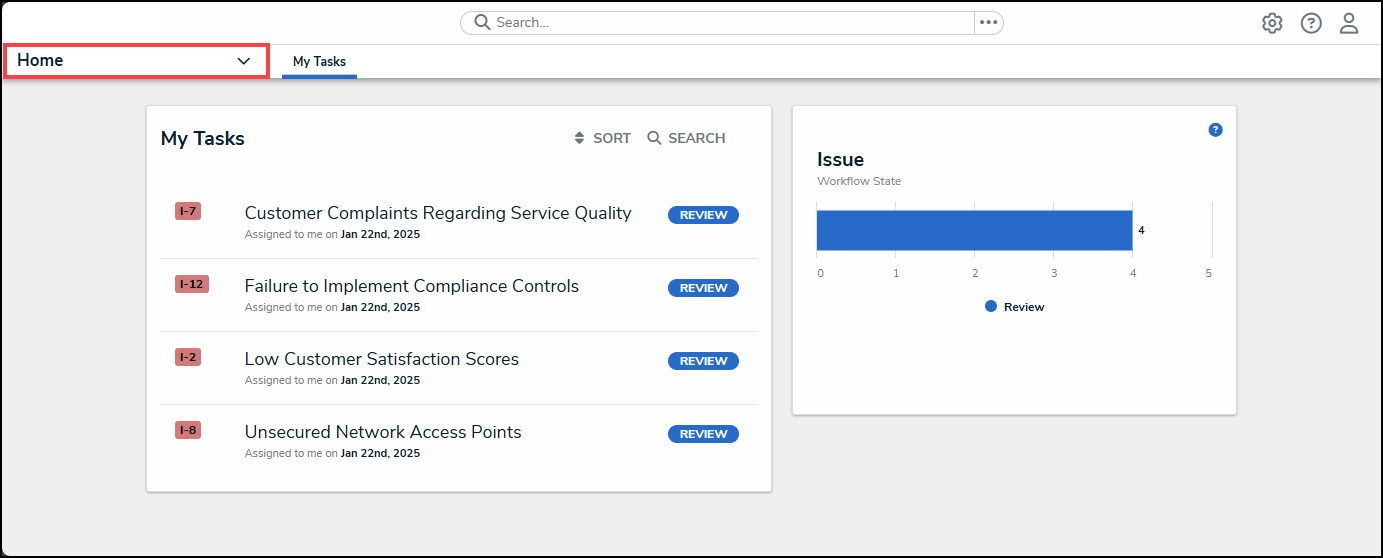
Home Dropdown
- From the Home dropdown menu, select the Issue Management link.
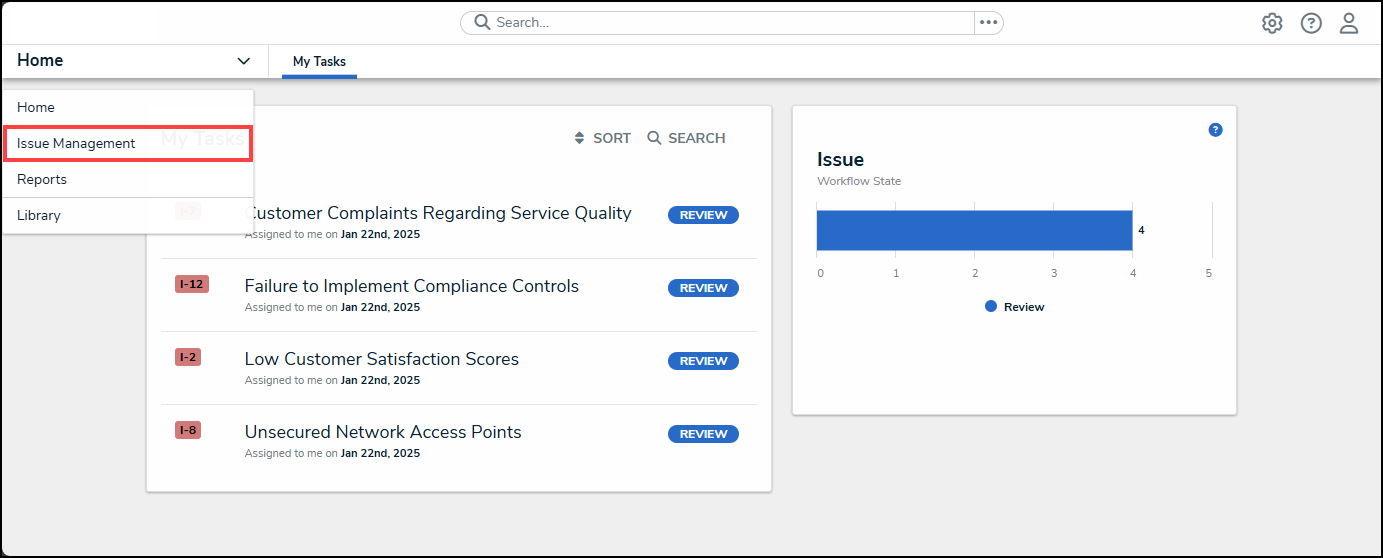
Issue Management Link
- From the Draft screen, click on an Issue on the Draft Issues list.
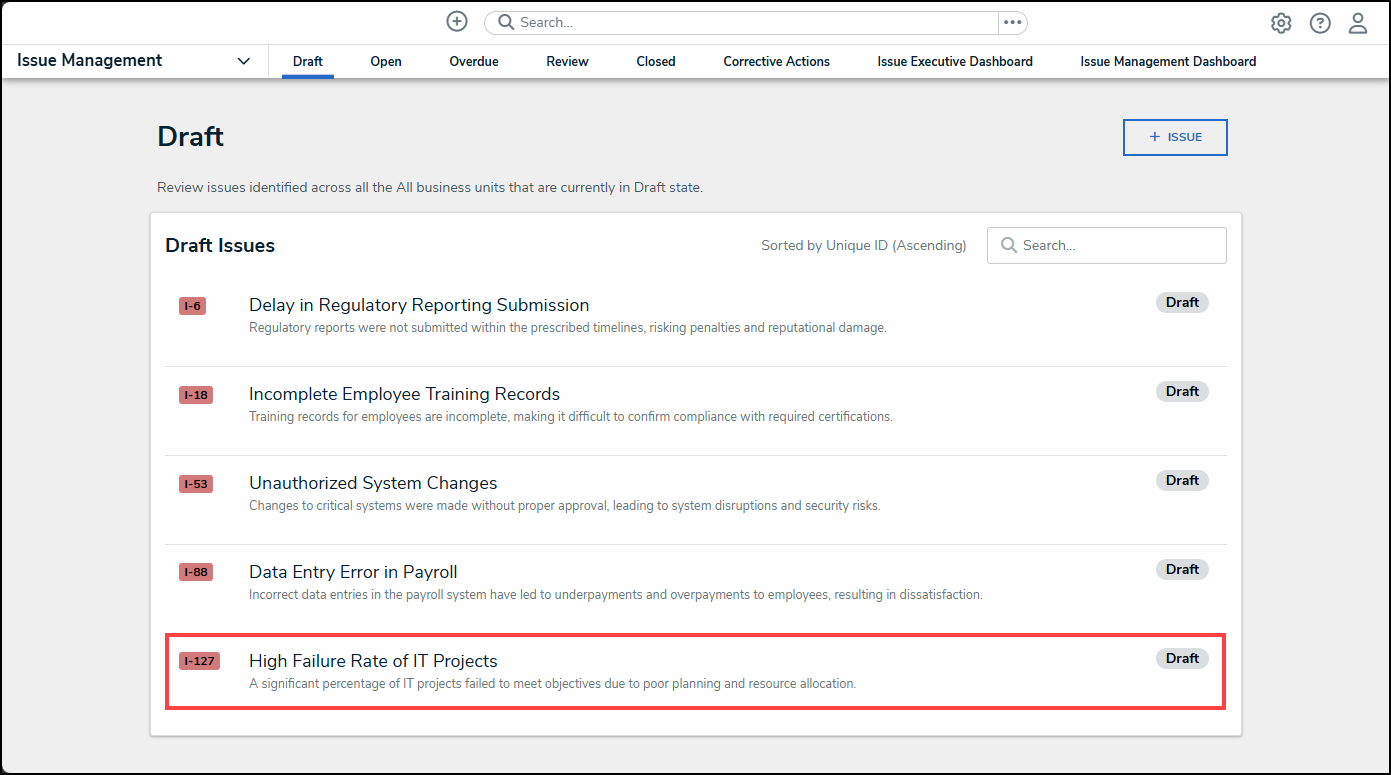
Draft Issue
Moving an Issue in a Draft State to an Open State
- From the Details tab, scroll to the bottom of the screen.
Details Tab
- Click the Open Issue button.
Open Issue Button
- The Draft screen will appear will a system-generated notification at the top of the screen indicating that the Issue was moved from a Draft state to an Open state. The Issue can now be found on the Open screen.
System-Generated Notification
- Issue Owners and Issue Delegates will receive an email notification indicating that the Issue has been created.
Email Notification