Article Content
| Overview |
| User Account Requirements |
| Navigation |
| Viewing Issue Status Summary Reports |
Overview
The Issue Status Summary reports display the current number of outstanding Issues by department allowing users to see how the team is performing.
User Account Requirements
The user account used to log into Resolver must be added to the Issue Team user group.
Navigation
- From the Home screen, click the Home dropdown.
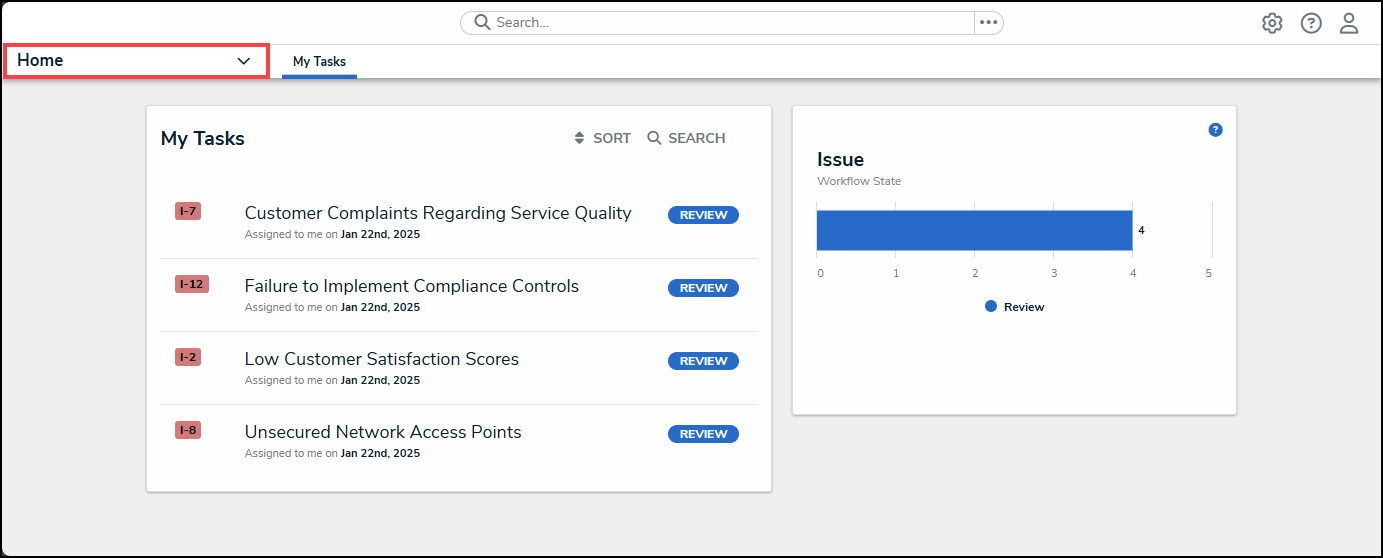
Home Dropdown
- From the Home dropdown menu, select the Reports link.
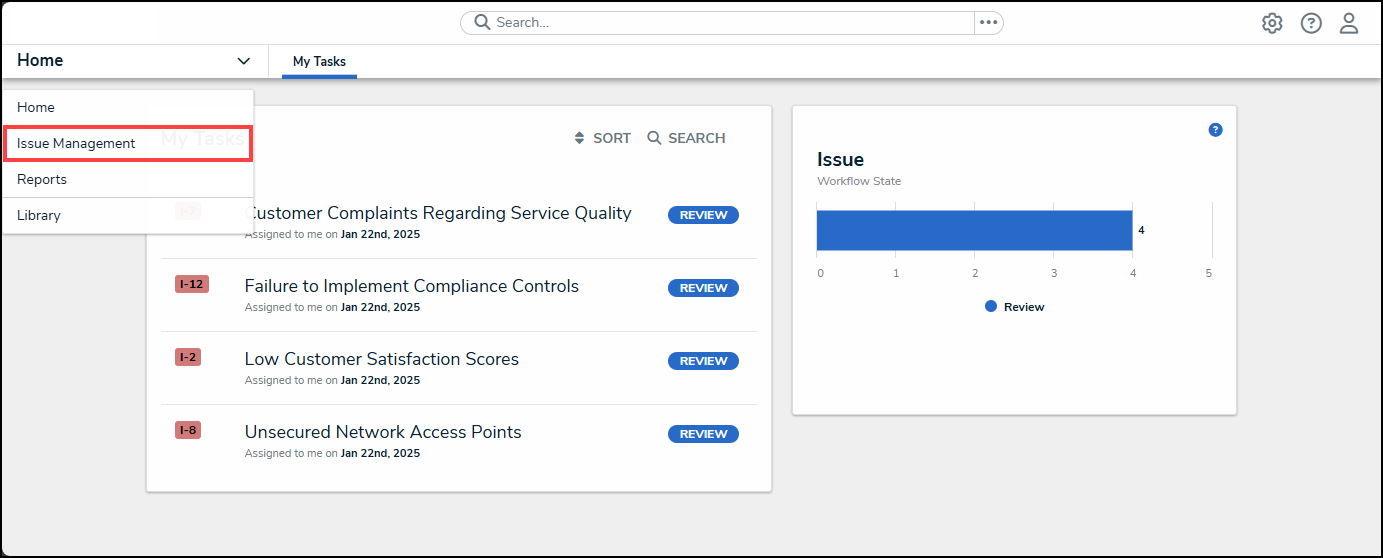
Reports Link
- From the Report screen, click the Issue Management tab.
Issue Management Tab
Viewing Issue Status Summary Reports
- From the Issue Management screen, click the Organization link under the Issue Status Summary section.
Organization Link
- From the Issue Status Summary screen, use the Navigation Tree to filter the report data on the Issue Performance screen by Business Unit by clicking on a Business Unit.
Navigation Tree
- The following Reports will appear on the Issue Status Summary screen:
-
Issue Status by Company: Shows the number of Issues by status and the number of Issues overdue for the organization.
- Hovering over an Issue Status will show the Issue percentage.
-
Issue Status by Company: Shows the number of Issues by status and the number of Issues overdue for the organization.
Issue Status by Company
-
- Issue Status by Business Unit: Shows the number of Issues by status for each Business Unit.
Issue Status by Business Unit
-
-
Overdue Issues: Shows all overdue Issues across the organization.
- Clicking on an Issue Number will open the Issue pop-up, giving further Issue Details and allowing users to resolve the Issue, depending on their Role.
-
Overdue Issues: Shows all overdue Issues across the organization.
Overdue Issues
-
-
Open/Extended Issues: Shows all the open and extended Issues across the organization.
- Clicking on an Issue Number will open the Issue pop-up, giving further Issue Details and allowing users to resolve the Issue, depending on their Role.
-
Open/Extended Issues: Shows all the open and extended Issues across the organization.
Open/Extended Issues
-
-
In Review Issues: Shows all the Issues in review across the organization.
- Clicking on an Issue Number will open the Issue pop-up, giving further Issue Details and allowing users to resolve the Issue, depending on their Role.
-
In Review Issues: Shows all the Issues in review across the organization.
In Review Issues
-
-
Closed Issues: Shows all the closed Issues across the organization.
- Clicking on an Issue Number will open the Issue pop-up, giving further Issue Details.
-
Closed Issues: Shows all the closed Issues across the organization.
Closed Issues