Article Content
| Overview |
| User Account Requirements |
| Navigation |
| Viewing the Issue Register Overview Reports |
Overview
The Issue Register Overview reports help identify categories with a high number of Issues.
User Account Requirements
The user account used to log into Resolver must be added to the Issue Team user group.
Navigation
- From the Home screen, click the Home dropdown.
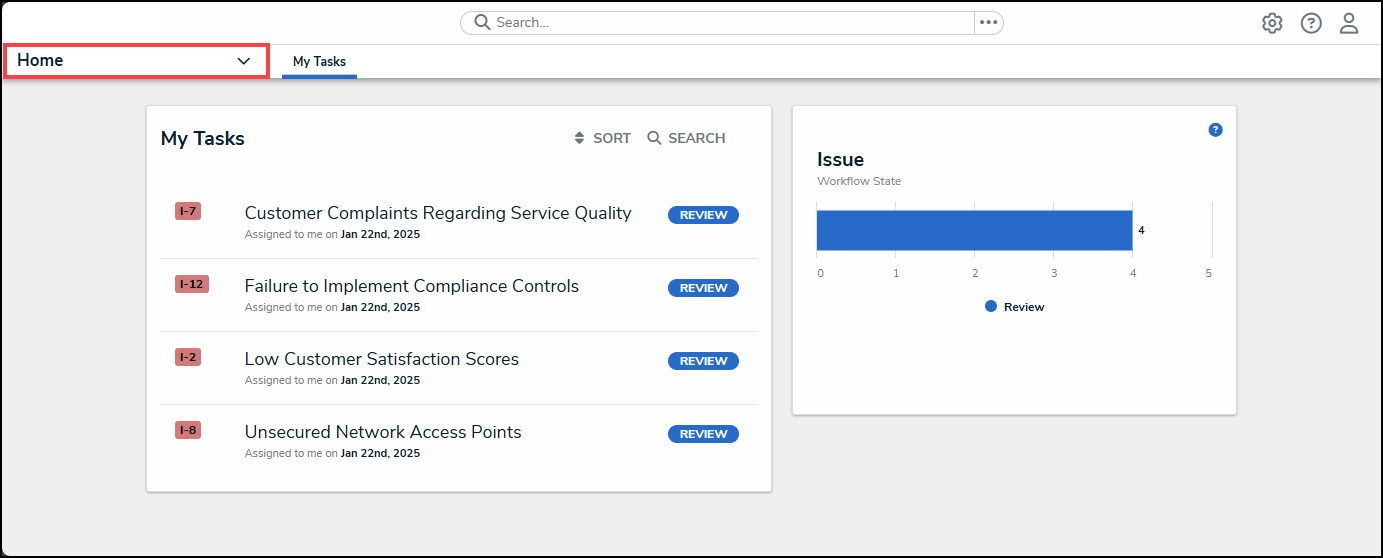
Home Dropdown
- From the Home dropdown menu, select the Reports link.
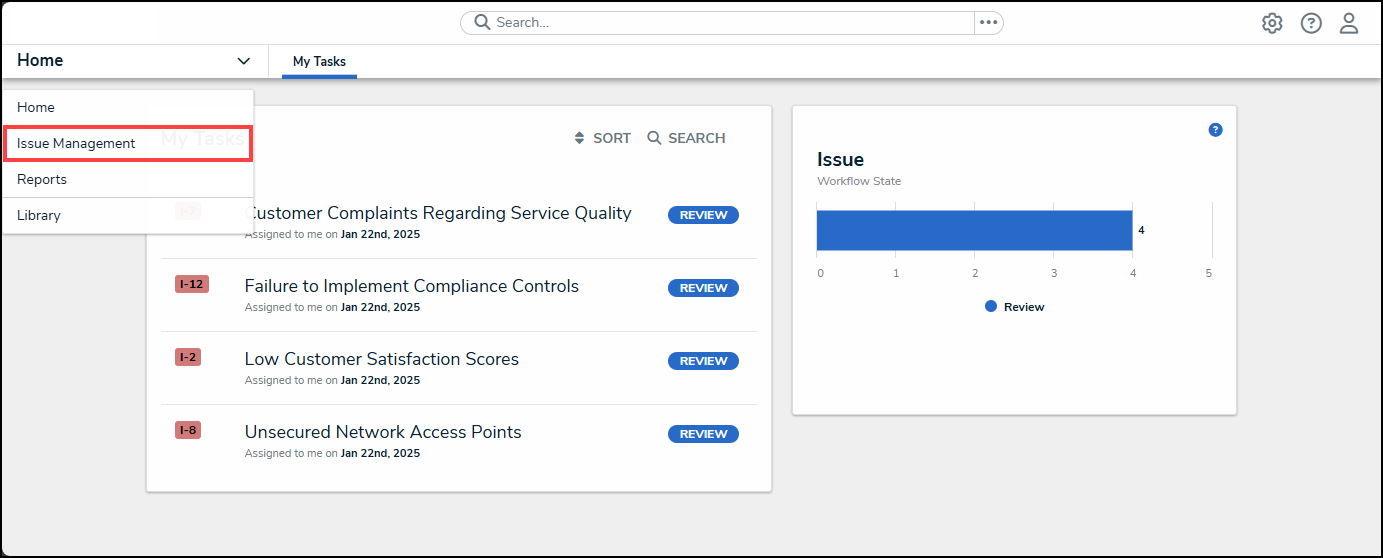
Reports Link
- From the Report screen, click the Issue Management tab.
Issue Management Tab
Viewing Issue Register Overview Reports
- From the Issue Management screen, click the Organization link under the Issue Categorization Summary section.
Organization Link
- From the Issue Categorization Summary screen, use the Navigation Tree to filter the report data on the Issue Performance screen by Business Unit by clicking on a Business Unit.
Navigation Tree
- The following reports will appear on the Issue Categorization Summary screen:
-
Issue Priority by Issue Category: Shows the number of Issues by priority in each Issue Category.
- Hovering over an Issue will show the Issue Priority and Category.
-
Issue Priority by Issue Category: Shows the number of Issues by priority in each Issue Category.
Issue Priority by Issue Company
-
-
Issue Status by Category: Shows the number of Issues by status for each Category.
- Hovering over an Issue will show the Issue Status and Category.
-
Issue Status by Category: Shows the number of Issues by status for each Category.
Issue Status by Category
-
-
Issues Categories: Shows all Issues Categories across the organization.
- Clicking on an Issue Category Number will open the Issue Category pop-up, giving further Issue Category Details.
-
Issues Categories: Shows all Issues Categories across the organization.
Issues Categories
-
-
High Priority Issues: Shows all high priority Issues across the organization.
- Clicking on an Issue Number will open the Issue pop-up, giving further Issue Details and allowing users to resolve the Issue, depending on their Role.
-
High Priority Issues: Shows all high priority Issues across the organization.
High Priority Issues
-
-
Overdue Issues: Shows all the overdue Issues across the organization.
- Clicking on an Issue Number will open the Issue pop-up, giving further Issue Details and allowing users to resolve the Issue, depending on their Role.
-
Overdue Issues: Shows all the overdue Issues across the organization.
Overdue Issues
-
-
All Active Issues: Shows all the closed Issues across the organization.
- Clicking on an Issue Number will open the Issue pop-up, giving further Issue Details and allowing users to resolve the Issue, depending on their Role.
-
All Active Issues: Shows all the closed Issues across the organization.
All Active Issues
-
-
Closed Issues: Shows all the closed Issues across the organization.
- Clicking on an Issue Number will open the Issue pop-up, giving further Issue Details.
-
Closed Issues: Shows all the closed Issues across the organization.
Closed Issues