Article Content
| Overview |
| User Account Requirements |
| Related Information/Setup |
| Navigation |
| Multiple Nightly Triggers on an Object Type |
| Trigger Types |
| Additional Information |
Overview
A trigger moves an object from one state to another.
A transition is part of a trigger that indicates the transition state of an object (e.g., Open, Closed, etc.).
User Account Requirements
The user must have Administrator permissions in order to access the Admin Overview page.
Related Information/Setup
For more information on transitions, please see the articles below:
- Configurable Forms Overview
- Timed Triggers & Nightly Emails Schedule
- Add an Orchestration Event Action on a Transition
- Actions on Transitions
- Add a Condition to a Transition
- Edit or Delete a Trigger, Transition, or Action
Navigation
- From the Home screen, click the Administration icon.
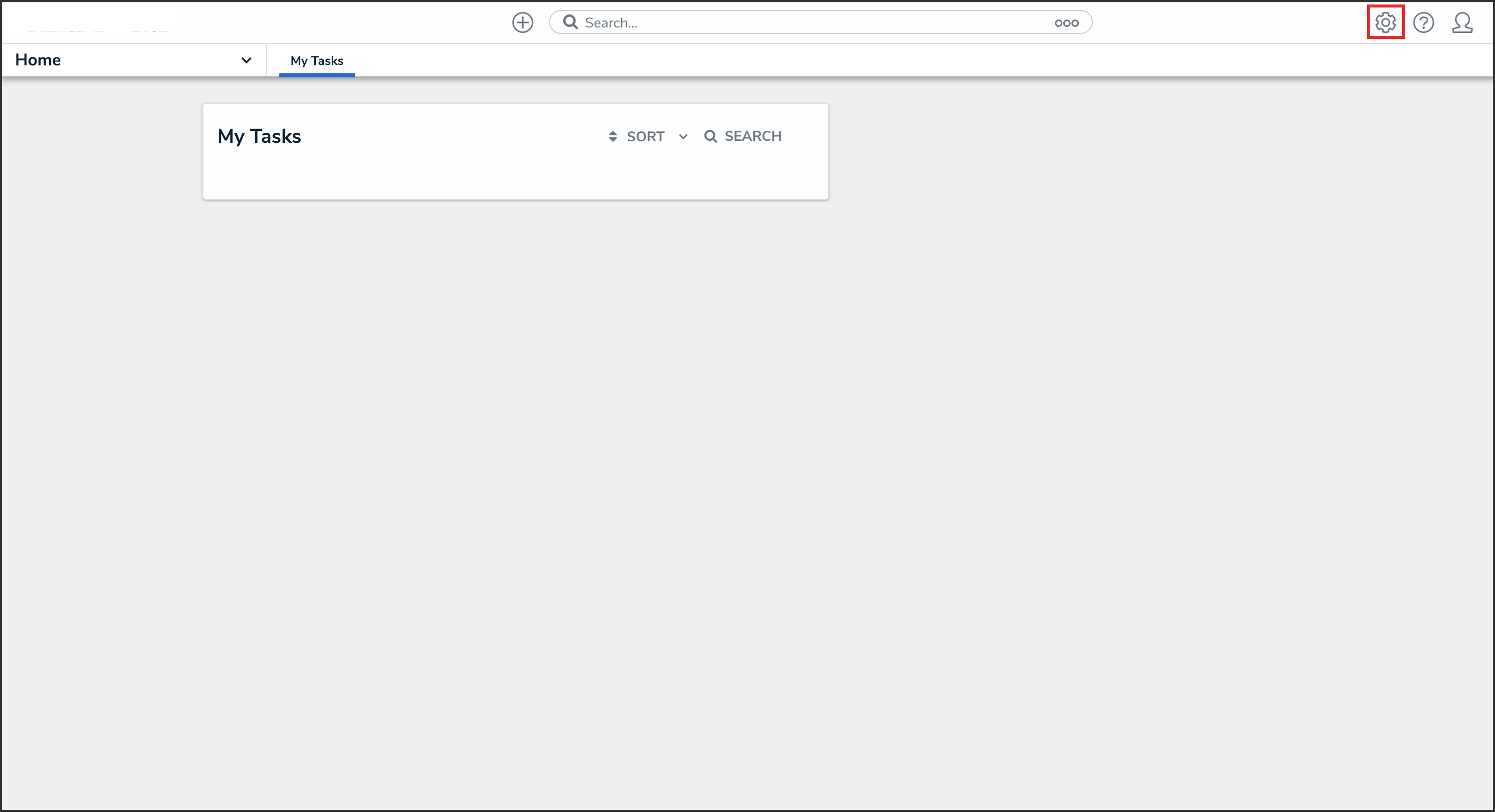
Administration Icon
- From the Administrator Settings menu, click Admin Overview.
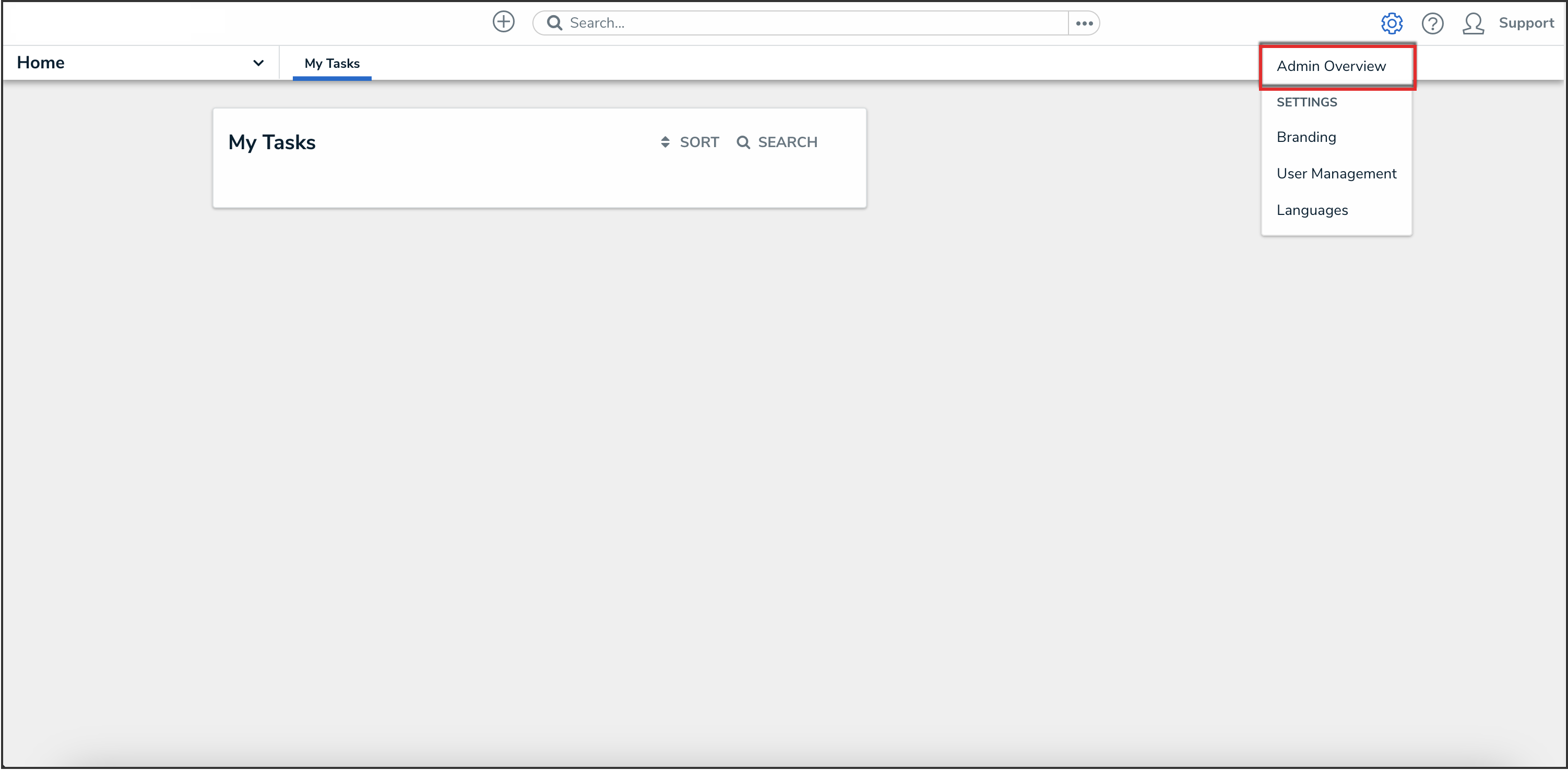
Admin Overview Link
- From the Admin Overview screen, click the Object Types tile under the Data Model section.

Object Types Tile
- From the Object Types screen, enter an object type name in the Search field to narrow down the object type list.
- Click the object type name you want to edit.

Object Type Name
- From the Edit Object Type screen, click a workflow under the Workflow tab.

Workflow Tab
- If there are no workflows listed, click the Configure Workflow button.
Configure Workflow Button
- From the Edit Workflow screen, click the Add Trigger button.
Add Trigger Button
Multiple Nightly Triggers on an Object Type
If an object type has multiple nightly triggers scheduled, one trigger is randomly selected to be processed during the nightly trigger procedure. If an error occurs when processing the selected trigger, a different trigger will be randomly chosen. Only one trigger per object type will be processed during the nightly trigger procedure.
Trigger Types
There are three trigger types within Resolver:
- Button: The button trigger type adds a button to configurable forms, which moves an object from its current state to another state (e.g., clicking the Submit for Review button on a form will move the object to the In Review state).
-
Timed: The timed trigger type moves an object to a specified state and can perform actions nightly (e.g., create a trigger that notifies users of an overdue deadline or reminds them to launch an assessment on a particular day).
- The timed trigger type cannot be added to the Creation state.
- If a state contains multiple timed triggers with conditions, you must create separate transitions for each trigger.
-
Consume Orchestration Event: The consume orchestration event trigger type uses an existing state or object type’s send orchestration event action to automatically transition an object to another predefined state (e.g., Closing an audit object will also automatically close all issue objects in an Open state).
- The consume orchestration event trigger type also cannot be added to the Creation state.
Trigger Types
Additional Information
- You can create actions when the object moves to the next state on the trigger.
- Multiple triggers and transitions can be saved to a single state.
- You can also add conditions that define certain requirements before an object moves to the next state and an action is performed.
|
Note: All triggers must have transitions saved to move the object from state to state. |