Article Content
| Overview |
| Navigation |
| Selecting an Indoor Location |
Overview
Users can select an Indoor location for the Dispatch instead of using an outdoor location.
Navigation
- From the Home screen, click on the Create Icon.
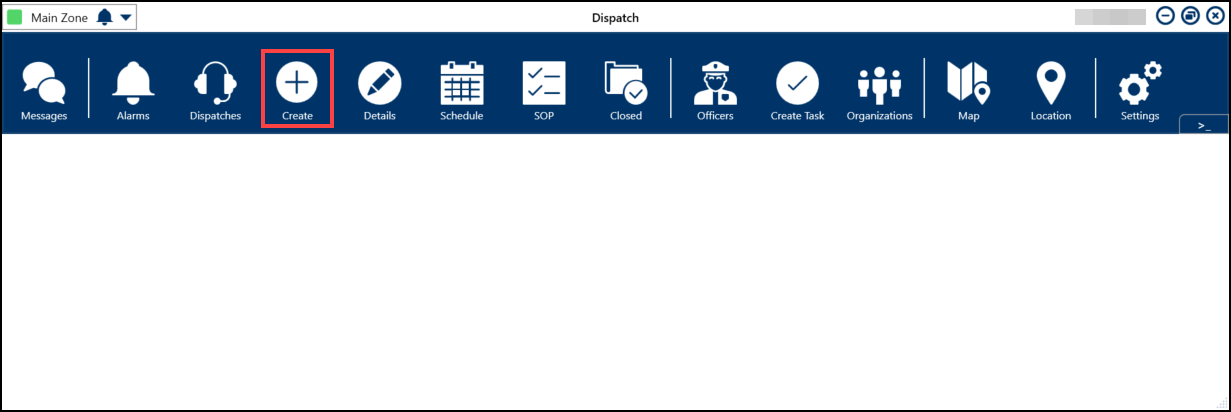
Create Icon
Selecting an Indoor Location
From the Search Location Field:
- Enter search criteria in the Search Locations field, then select the indoor location from the search results.
Search Locations Field
From the Map:
- Click on a Pin on the Map that has an Indoor location.
Pin Location
- Click the Indoor Location Point link at the bottom of the Map.
Indoor Location Point Link
- An image of the Indoor Location will appear over the Map.
Indoor Location
- Click the Teal pin(s) to open an indoor location.
Teal Pin
- Double-click the image to place a Temporary pin to select the indoor location and indicate the exact location of the dispatch.
Temporary Pin
- Temporary pins appear as a Red pin icon for dispatchers when viewing the indoor location through the Map panel (the color of the icon is determined by the dispatch’s priority color, if any).
Red Pin