Article Content
| Overview |
| User Account Requirements |
| Related Information/Setup |
| Navigation |
| Resetting Multi-Factor Authentication Through User Management |
Overview
If a user loses access to their authenticator app (e.g. mobile phone is lost) or over-writes their account credentials accidentally (i.e. adds account for Sandbox environment), an Administrator can reset multi-factor authentication (MFA) for the end user either through the User Management screen or API (Swagger).
User Requirements
Only Administrators can reset MFA for users on their Org.
Related Information/Setup
Please refer to the Multi-Factor Authentication Setup article for more information on setting up users with MFA.
Navigation
- From the Home screen, click the Administration icon.
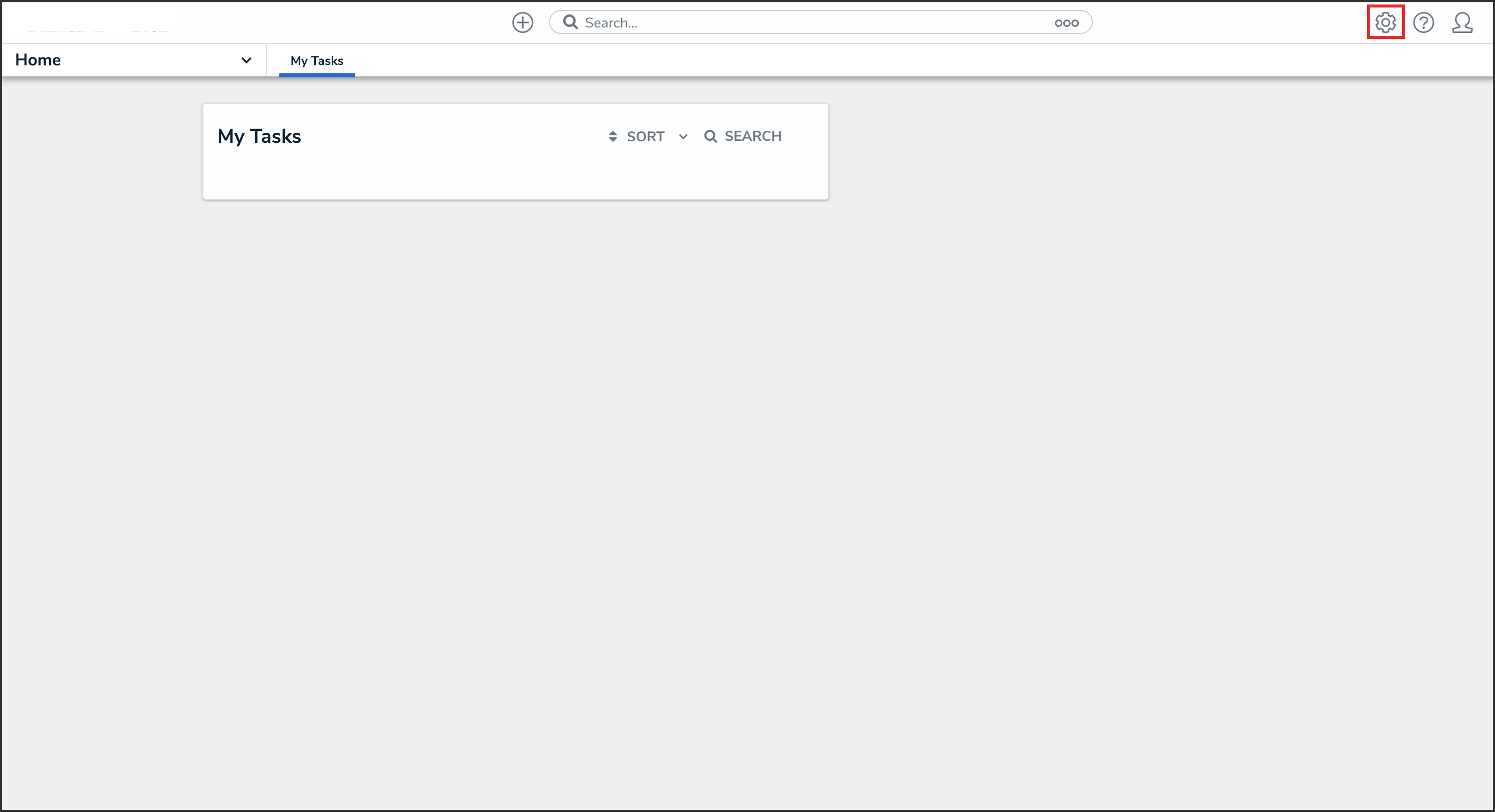
Administration Icon
- From the Administrator Settings menu, click User Management.
Administrator Settings Menu
- Search the name of the user you want to reset MFA for and click their name.
User Name
Resetting Multi-Factor Authentication through User Management
- From the Edit User screen, under the Account Status section, click one of the following buttons:
- Reset MFA For This User
- Reset Org-Level MFA For This User
Reset Org-Level MFA For This User Button
- From the Reset MFA for this user? pop-up, click the Reset MFA button to confirm.
Reset MFA For This User? Pop-up