Article Content
| Overview |
| User Account Requirements |
| Related Information/Setup |
| Navigation |
| Adding an Organization Name |
Overview
From the Branding screen, Administrators are able to add their organization’s name to the header of their Resolver instance.
User Account Requirements
The user must have Administrator permissions or Settings Management advanced permissions in order to access the Branding screen and add an organization name.
Related Information/Setup
Please refer to the Branding Overview article for more information.
Navigation
- From the Home screen, click the Administration icon.
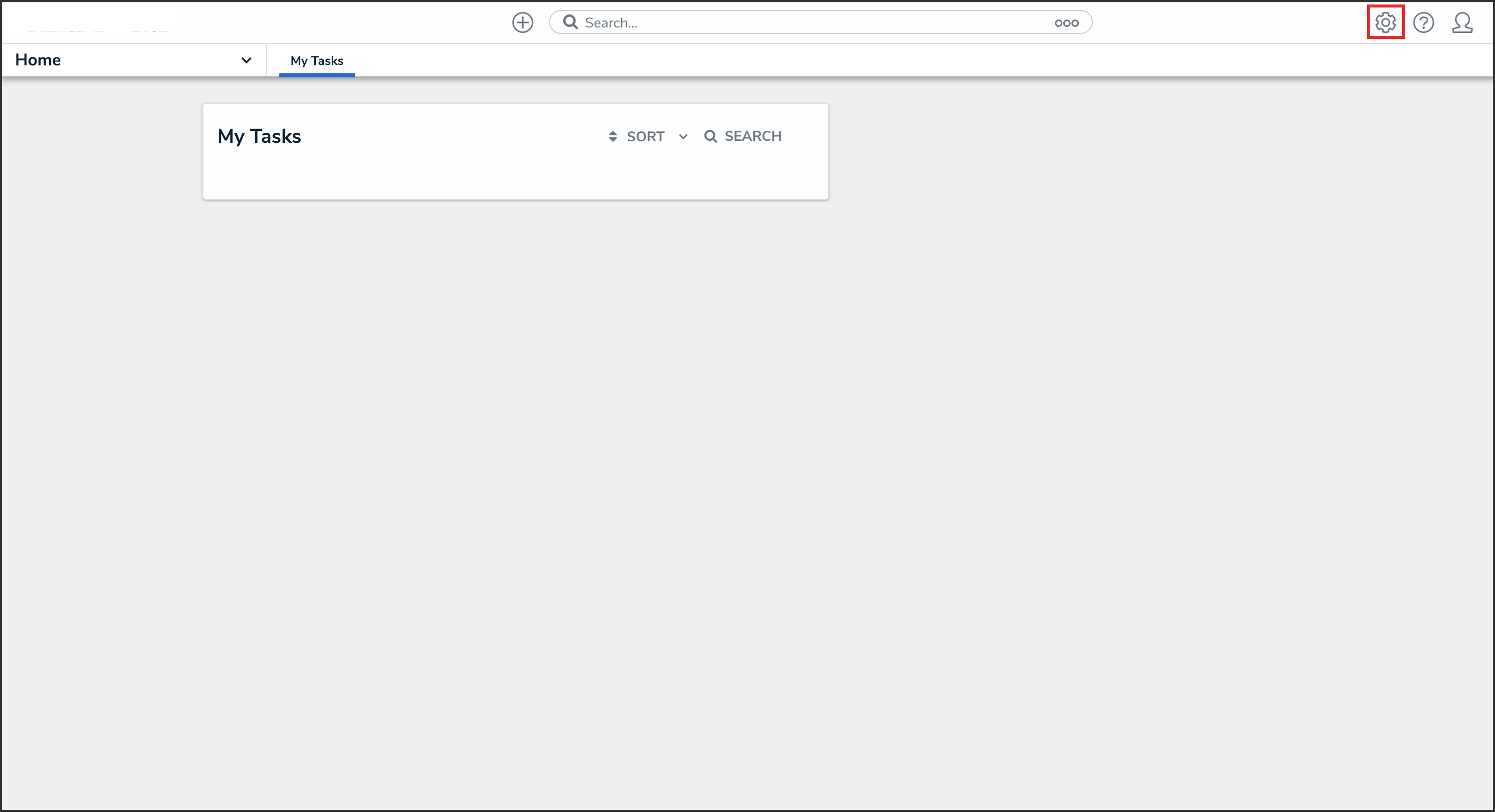
Administration Icon
- From the Administrator Settings menu, click Branding.
Administrator Settings
Adding an Organization Name
- From the Branding screen, click the Add Organization Name button or the Edit icon beside Organization Name.

Edit Organization Name
- From the Organization Name pop-up, type the organization name into the Organization Name field.

Organization Name Field
 |
Note: The organization name cannot exceed a maximum of 300 characters, and can only contain alphanumeric and special characters. |
- To show the organization name in the header, select Yes under the Show organization name in header? field.

Show Organization Name in Header? Field
- Click the Save button.

Save Button